Change the Hair in a Portrait: Step-by-Step AI Guide
You're staring at a LinkedIn photo that doesn't quite match the person on your next video call. Your hair's longer now, or shorter, or you want a neater cut before a client pitch, but booking another shoot feels slow and unnecessary. That's the moment to change the hair in a generative AI portrait instead of starting over.
The goal isn't the most dramatic transformation. It's a portrait people recognize as you, with hair that fits the role you want to project. Treat the edit as a recognizability decision first and a styling decision second, and you'll get a usable headshot faster, with fewer fake looking results to discard.
Choose a Hair Change That Still Looks Like You
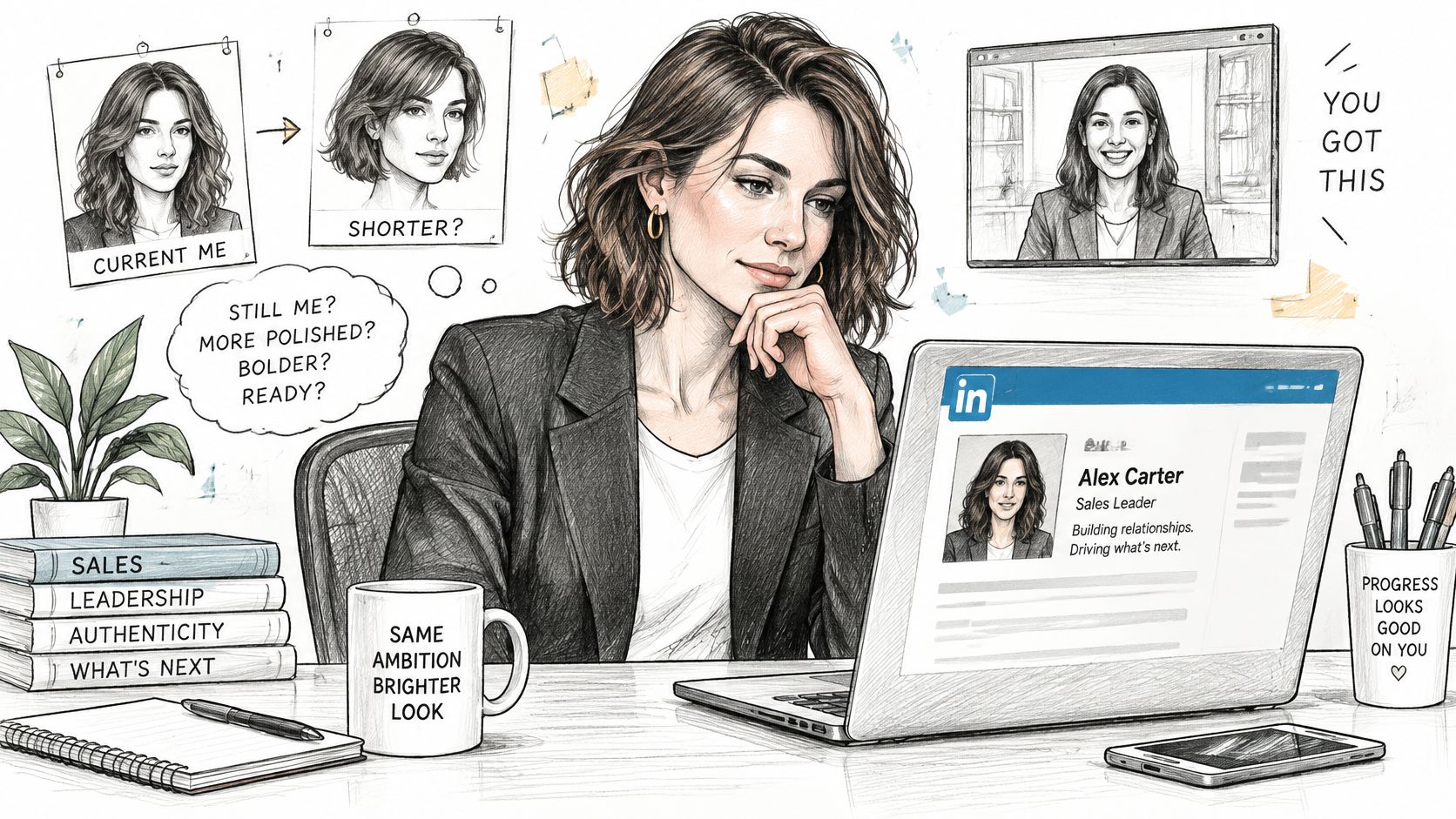
Say a sales lead wants a shorter, neater cut for her LinkedIn photo. She likes the idea of a bob, but she worries prospects won't connect the profile image to the person they meet on a call. A hair change works best as a targeted revision of a portrait she already has, not as a reason to generate an entirely new face.
Start by sorting the idea by impact. Trims, length changes, parts, and color shifts usually keep you recognizable. A fringe changes how much forehead shows, so it needs closer attention. Hairline, volume, texture, and culturally specific styles carry the highest risk because they alter your silhouette and the way people read your face.
Verander je professionele imago
Ontvang verbluffende AI-gegenereerde professionele headshots in minder dan een uur. Upload gewone selfies of groepsfoto's, kies uit meer dan 100 stijlen en wij maken honderden perfecte foto's die jouw beste ik weergeven.
Hair Change Levels and How Far to Push Them
Generate two to four degrees of each idea and compare them at thumbnail size. That's how people first see you in search results, inboxes, and team directories. If the thumbnail looks like a cousin rather than you, pull back, even if the full size face is technically similar.
If color is your main question, isolate it before you change length or shape. Testing shade on its own with Nereo's hair color preview tool can help you narrow the direction, and this guide to hair for headshots covers how different choices read in professional portraits.
That rule saves time. Low impact edits need fewer retries, preserve your hairline and proportions more reliably, and get you to a credible final image quicker.
How to Change Hair in a Portrait Step by Step
Before you start, name the target look in one sentence. Pick a preset style or save one reference photo of a hairstyle you like, and prefer a reference whose head angle is similar to your base portrait. Keep your identity photos separate from that style reference so the model learns your face, not the style donor's face. Upload only images you're comfortable storing on the platform.
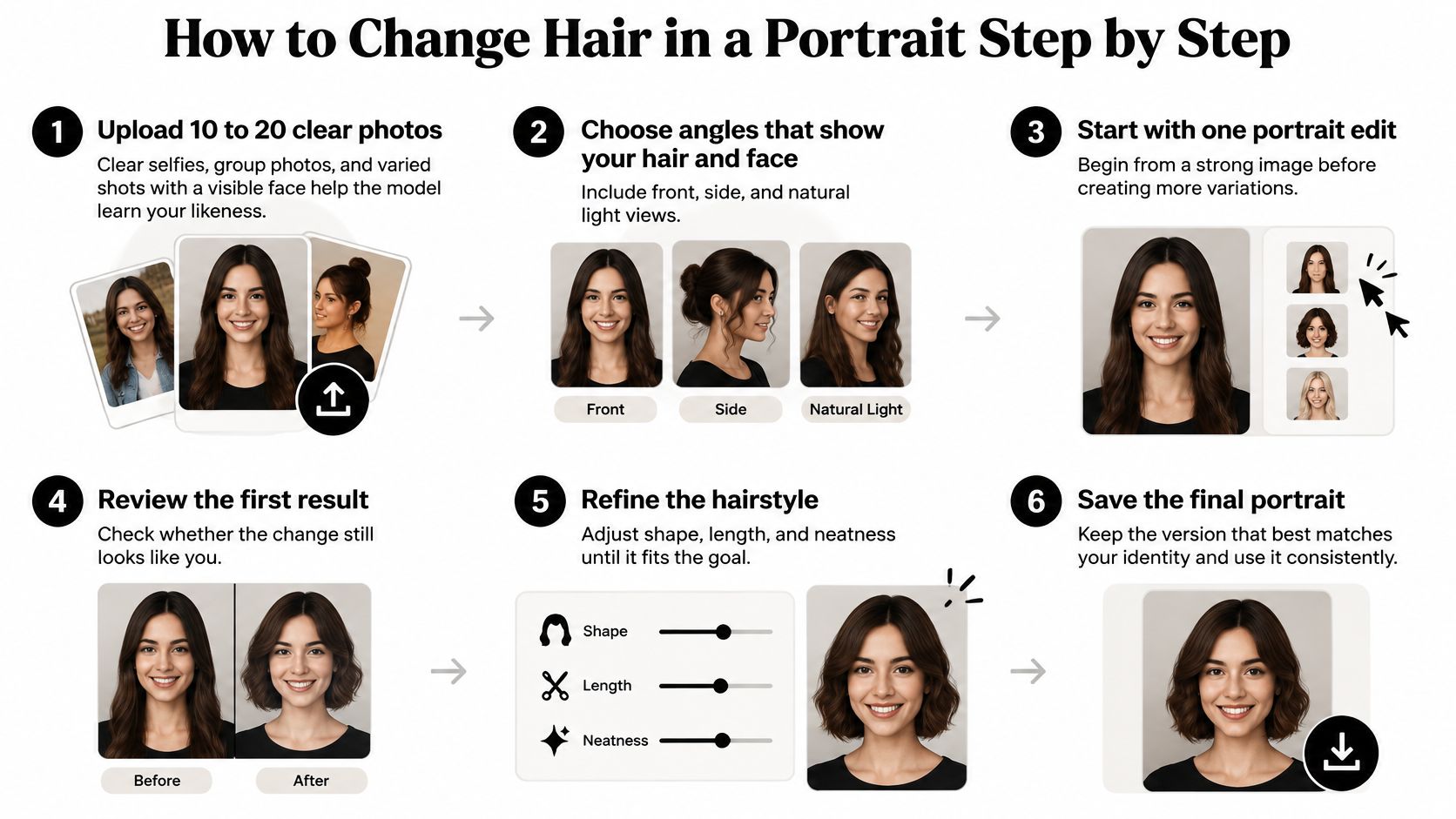
The Routine in Order
- Upload 10 to 20 clear photos of yourself. Selfies and group photos both work, and varied shots with a visible face give the model more to learn from. A clear base set makes every later hair change more accurate because the model has already learned your features.
- Select your gender, or click Other if you prefer not to specify. This guides the initial generation toward appropriate default styles. You can still override the hairstyle later.
- Wait for your personal model to train and generate your first headshots. Don't judge hairstyles yet. Pick the portraits where your eyes, jawline, and skin tone look most like you.
- Open the editing tools and choose the hair swap option. Apply the new style to a portrait you already like. Customers can edit any photo to match their preferences, including swapping outfits, hair, glasses, and localizing backgrounds, so keep this pass focused on hair alone.
- Use Variations to create a set of new photos. Variations creates a set of new photos, with the number depending on how many changes you want. Fewer changes fix small errors, while bigger changes let you try different poses or backgrounds once the hair is right.
- Review each result at full size, then at thumbnail size. Full size reveals edge problems around the hairline and ears. Thumbnail size tells you whether strangers will still recognize you.
- Run the upscaler on your favorite. This keeps strand edges and the hairline sharp when the image is cropped for LinkedIn, a company site, or a speaker page. Don't upscale rejects, because it only makes flaws more visible.
- Download the approved image. Save the base portrait too, so you can retry from the same starting point if you want another style later. This guide to add hair to a picture is useful if your starting portrait needs volume before you restyle it.
A good result has natural hair texture, a clean hairline, and the same eyes and jawline as your reference photos. If you have to convince yourself it looks like you, it doesn't. Generate a smaller degree of change instead.
Check Edges, Fix Problems and Match Your Texture
Hair should change only the hair region while your face and background stay untouched. That separation is what makes an edit believable. In the HairFusion methodology, the source image is converted into a hair-agnostic representation, a reference hairstyle is aligned through cross-attention that accounts for differences in head pose, and adaptive blending composites generated hair only into regions identified as hair, preserving facial features and the surrounding background.
You don't need to run that system to use its logic. Mirror it with your own checks. Verify the hair mask, choose a reference with a compatible pose and camera angle, generate several candidates, and reject any output where hair spills onto your forehead, ears, glasses, clothing, or background.
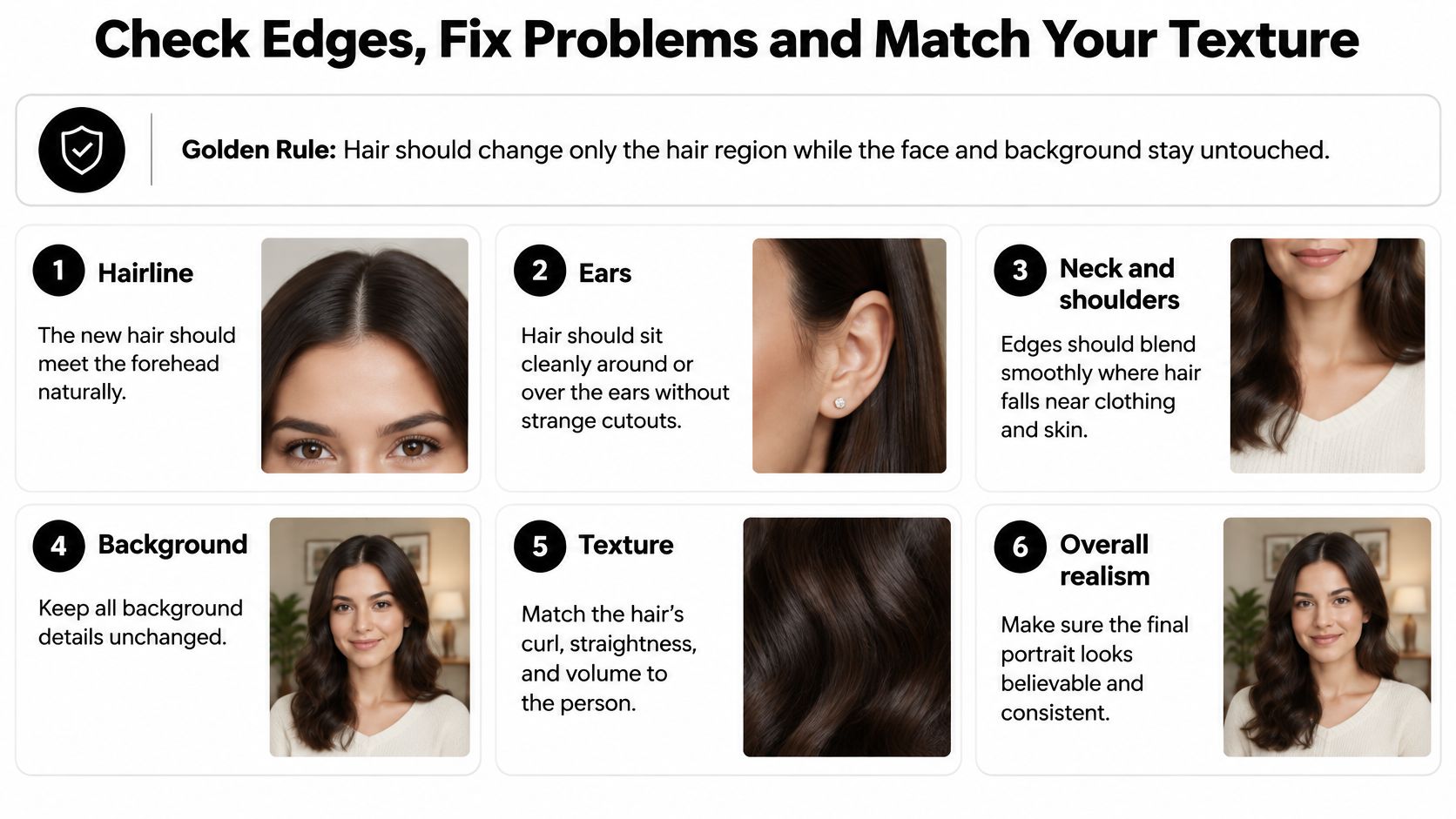
Six Checks in Order
- Hairline. New hair meets your forehead with a clean, natural edge and no halo or blurred band. A bob with bangs whose edge cuts across the left temple fails here, no matter how good the rest looks.
- Ears. Hair sits around or over your ears without changing their shape or skin tone. Swallowed or duplicated ear edges are an instant tell.
- Strand edges. The top and sides show fine, varied strands, not smearing or abrupt cutoffs. Zoom in, because LinkedIn compression won't hide a melted edge.
- Accessories and collar. Glasses, earrings, and collars aren't overlapped or partly erased by hair. Hair should pass behind or in front consistently, not both.
- Background. Lines, color, and texture near your head keep their original shape. A wavy door frame behind new volume means the edit reached too far.
- Identity. Your eyes, jawline, and facial proportions match three reference photos of yourself. Compare side by side rather than trusting memory.
Hairstyle Symptoms, Causes and Fixes
Texture deserves special patience. Straight styles can look plausible even when strand detail is thin, but curls, coils, locs, and braids expose shortcuts quickly. Look for consistent curl direction, believable volume at the crown, and edges that don't flatten into a helmet shape.
Pose mismatch causes many pasted on results because hair geometry isn't a flat texture you can stretch over any head angle. A three quarter reference rarely sits cleanly on a straight on portrait. Picking a closer angle fixes more than repeated regeneration ever will.
If your expression shifted during the hair edit, don't redo everything. Change Expression changes only the expression in a generated photo while everything else stays the same, so you can correct that layer separately and keep the hair you approved. One variable at a time is the fastest route to a usable portrait.
Build a Matching Set of Hairstyles for Your Gallery
A casting agency needs the same actor in three looks for one portfolio, short, shoulder length, and long. If each image is generated independently, the face drifts and the set stops reading as one person. The fix is to build from a single identity anchor.
That principle matches the HairShifter method, which first creates a high-quality anchor image containing the desired hairstyle and the subject's identity, then retains that anchor's hair structure, facial identity, and expressions in later frames. For still portraits, the same logic keeps a gallery consistent across hair choices, poses, and expressions.
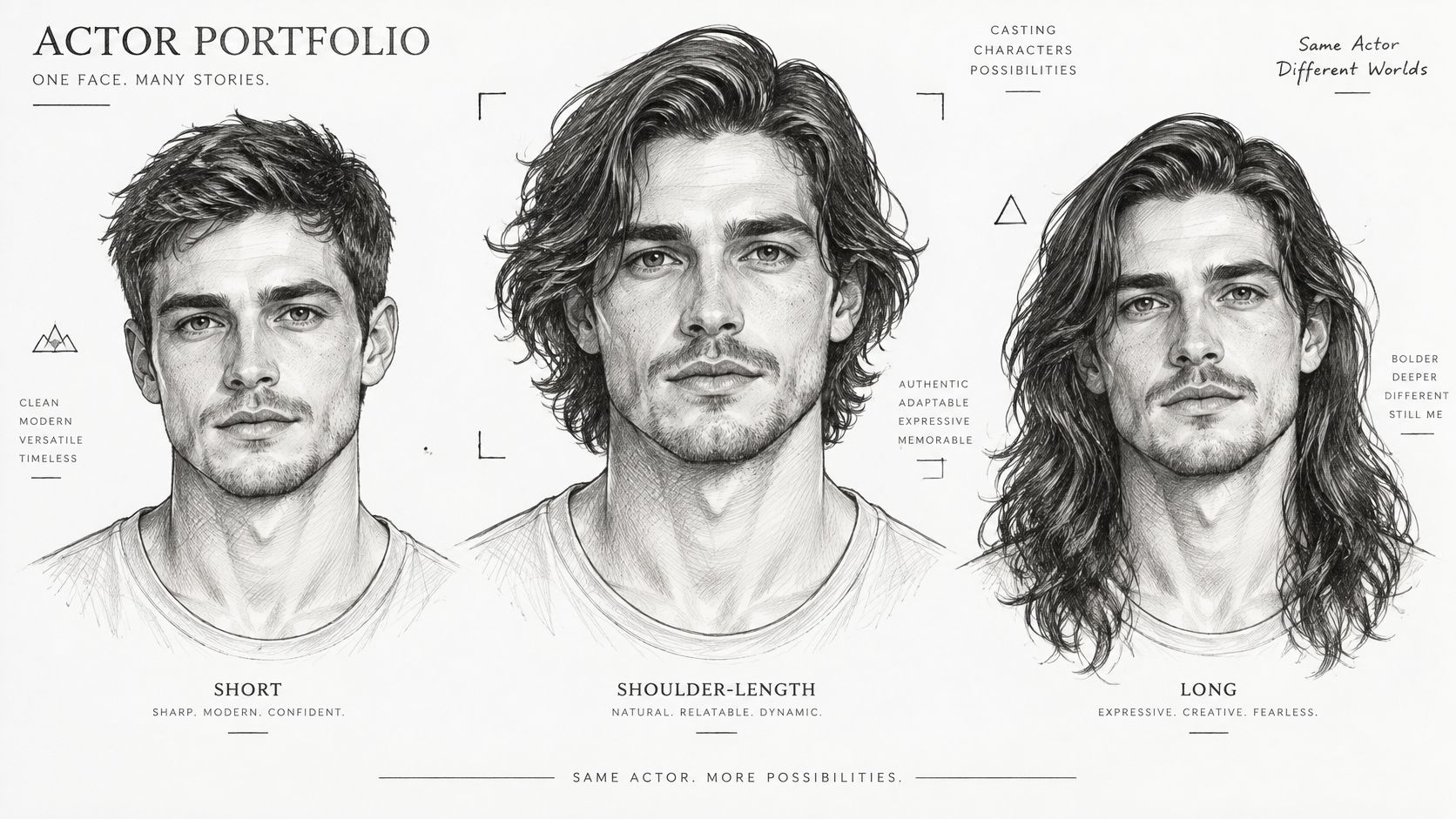
Build From the Anchor
- Pick the anchor image closest to your real appearance, with a clear face and a neutral expression you can reuse.
- Create the short hairstyle from that anchor with a single change, then run your edge and identity checks.
- Create the longer version from the same anchor, not from the short version, so errors don't compound.
- Use Generate for variety after hair is settled, adding different backgrounds and clothing while the hairstyle stays fixed.
- Check the whole set side by side at thumbnail size and regenerate any drifting face from the anchor.
This is also how creators keep channels and booking pages coherent without rebuilding every asset. Resources on professional profile photos for content creators show how consistent profile imagery supports that work, and this approach to editing multiple photos helps when you're managing a larger set.
For teams, consistency needs a reviewer as well as a method. In the team dashboard, the admin can approve, edit, or regenerate team photos, which keeps individual hair choices from breaking a shared brand look. A consistent set is usable straight away, without manually correcting each image.
Confirm Your Hairstyle and Order the Final Set
A useful final test is practical: could a client meet you on a video call tomorrow and feel they already know you? Choose the portrait that survives that test, even when another frame is more dramatic. My recommendation is to treat recognizability as the pass/fail gate and styling as the polish.
For LinkedIn, corporate, real estate and consulting profiles, stay with a low or medium impact change: cleaner parting, tidier sides, subtle length, refreshed color. Actor, creator and personal brand portraits can carry more range, because showing range is part of the job. A consultant testing a bob or an executive going slightly shorter can look current while still matching the person colleagues expect.
Trust is the reason. According to CNBC survey coverage, 88% of job seekers believe a polished digital presence influences hiring decisions, an increase of 45% from the previous year. The same coverage notes recruiters may view overly smooth or stylized portraits as inauthentic, while poorly produced images can hurt a candidate's chances.
Your Final Three Steps
- Shortlist three results that pass the hairline, ear, strand, accessory, background, and identity checks.
- Ask one colleague who knows you whether they'd recognize you from the thumbnail without your name attached.
- Download and upscale the winner, then use it consistently across the profiles that matter most. Secta's custom upscaler increases generated images to high resolution without damaging facial resemblance or overly smoothing the face.
You don't need a separate tool for each adjustment. Over 12 editing tools are available, including Clothing Change, Change Expression, Change Background, Upscaler and Retouch. Once the hair is approved, Variations can fix small errors, while Generate creates a variety of new photos with different clothing styles, backgrounds or expressions, so one good hair decision can support a full set.
Secta Labs uses Variations and Generate to build that set, so you can compare realistic options side by side instead of booking another shoot and hoping one frame works. That matters when a new role, pitch, or casting deadline is already on your calendar.
Pick the image clients, recruiters, and colleagues will match to you instantly, then stop editing. Extra polish after that point usually trades credibility for novelty.
Upload your photos to Secta Labs today, generate your first set, and test one low impact hair change on your strongest portrait. Run the six checks, view it at thumbnail size, upscale the winner, and publish a headshot that still looks like you on your next video call.