Professional Photo Editing Online Free: 10 Tools for 2026
A freelancer needs a credible profile photo by Friday, but the photographer's booked and the AI-generated portrait is close, not quite finished. The background distracts from the face, the crop feels too tight, or the skin retouching looks less natural than it should. A free online editor can often fix those details, but the fastest tool depends on whether you need precise layers, one-click cleanup, or a layout ready for LinkedIn.
This comparison judges ten free or freemium browser editors by one practical test: how quickly they can turn a generative AI headshot or portrait into a professional, usable image. Each entry covers the tools that matter for that job, where the free plan gets in the way, and what to consider before uploading a personal portrait.
The privacy trade-off matters, too. Some editors process work locally in your browser; others rely on online services, and their data policies can differ. Read the current policy before uploading a sensitive image. If you need a whole set of AI headshots in different styles rather than a manual polish pass, a dedicated AI headshot studio such as Secta Labs may get you to a finished result with less repetitive editing.

1. Photopea
Photopea is the strongest choice here when an AI-generated portrait needs careful, hands-on correction. Its browser-based, Photoshop-style workspace supports layers, masks, adjustment layers, smart objects, vector tools, Liquify, and Puppet Warp. It also opens and saves PSD and PSB files, alongside formats such as AI, SVG, PDF, INDD, HEIC, and RAW.
That depth pays off when a headshot has a small but important flaw. You can use a mask to refine a background edge around hair, adjust color without flattening the entire image, or retouch a clothing seam on its own layer. Photopea also offers AI-assisted background removal and generative replace, though detailed cleanup still takes a steadier hand than a one-click editor.
Transformez votre image professionnelle
Obtenez de superbes photos professionnelles générées par l'IA en moins d'une heure. Téléchargez des selfies réguliers ou des photos de groupe, choisissez parmi plus de 100 styles et nous créerons des centaines de clichés parfaits qui vous mettront en valeur.
Where the manual control helps
Photopea processes edits locally in the browser, so the file isn't uploaded for editing. That can be a meaningful privacy advantage for a portrait, though it doesn't replace checking the tool's current policies or considering what happens when you save or share a file elsewhere. The free tier displays ads, and premium adds ad removal along with additional AI credits, history, and storage.
If you're building a wider browser-based editing workflow, this guide to online professional photo editing services provides useful context. For copy refinement alongside portrait production, RedactAI's no-cost toolkit is a separate resource. Photopea gets you closest to a full manual workflow for free, but it won't decide which generated portrait looks most like you.
2. Pixlr
Pixlr splits the job between Pixlr X, built for quick edits, and Pixlr E, which offers more advanced, layered editing. That division can feel like an extra choice at first, but it maps well to two common headshot tasks: making a fast portrait correction, or opening up a more detailed edit when a background edge or stray detail needs attention.
Its AI features include background removal, face retouching, and generative fill. Templates and batch options also help when a polished portrait needs to become a matching social or marketing asset. Pixlr has web and mobile options, which makes it easier to continue a light edit on a different device.
Fast fixes, with export caveats
For a generated headshot with a distracting backdrop, Pixlr's quick-edit path is easier to approach than Photopea's layer-heavy workspace. If the first removal leaves an awkward edge around hair or shoulders, switch to Pixlr E and inspect the result rather than assuming the automatic cutout is ready for a professional profile.
Some advanced tools and HD export options require a paid plan, as do additional assets and higher export options. Check those limits before spending time on a final design. If reflections are the issue in a portrait, this practical guide to removing glare from a photo online for free may help you decide whether a quick browser edit is enough. Pixlr is a good fit for speed, but its two-app setup and locked export options can interrupt an otherwise simple workflow.
3. Canva Photo Editor
Canva is especially useful when the headshot isn't the final deliverable. You can make quick photo adjustments, apply filters, remove a background, tweak objects, then place the portrait into a LinkedIn banner, resume, thumbnail, or branded business graphic without moving between tools. Its template and asset library makes layout work straightforward, and sharing and collaboration help when a team needs to review the result.
For an AI-generated portrait, the main advantage is the short path from image to finished presentation. Drop in the portrait, test a clean crop, and see how it reads in the actual layout where people will encounter it. Canva's simple controls also lower the learning curve when a teammate needs to make a minor update.
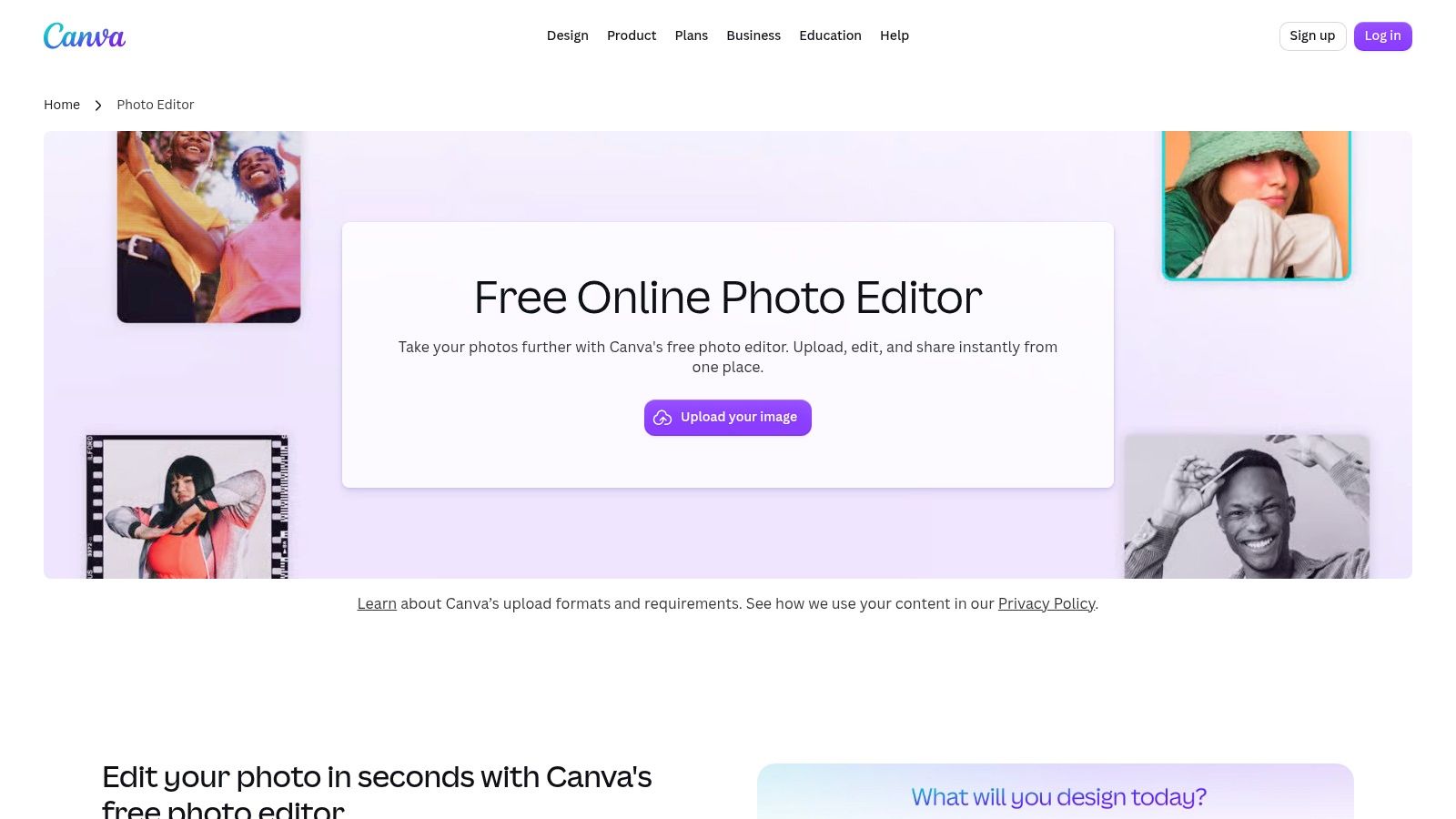
Best when the portrait needs a destination
Canva's strengths are design and collaboration, not detailed portrait retouching. Some AI features and content are limited on the Free plan, while higher AI allowances and additional brand tools require a paid plan. That matters if your workflow depends on repeated background changes or brand-controlled layouts.
Use Canva when the headshot needs to sit inside a polished business asset, especially if several people must review or update the design. For fine correction to skin texture, hair edges, or generated clothing, it may take more effort than a dedicated editing workspace. Keep the portrait recognizable and avoid overusing filters just because they're easy to apply.
4. Adobe Express
Adobe Express offers a clean browser-based route for common headshot adjustments. Its Free plan includes background removal and image adjustments, while resizing, retouching, and filters cover the usual finishing tasks. Templates, fonts, and quick social sizes make it convenient to adapt one generated portrait for a profile, a banner, or a business post.
The interface feels designed for getting an asset ready rather than building a complicated edit. If a generated headshot has a plain backdrop and needs a modest crop or tonal correction, Express can be a direct path to a shareable result. It also serves as an entry point to Adobe's broader tools if your work later needs more control.
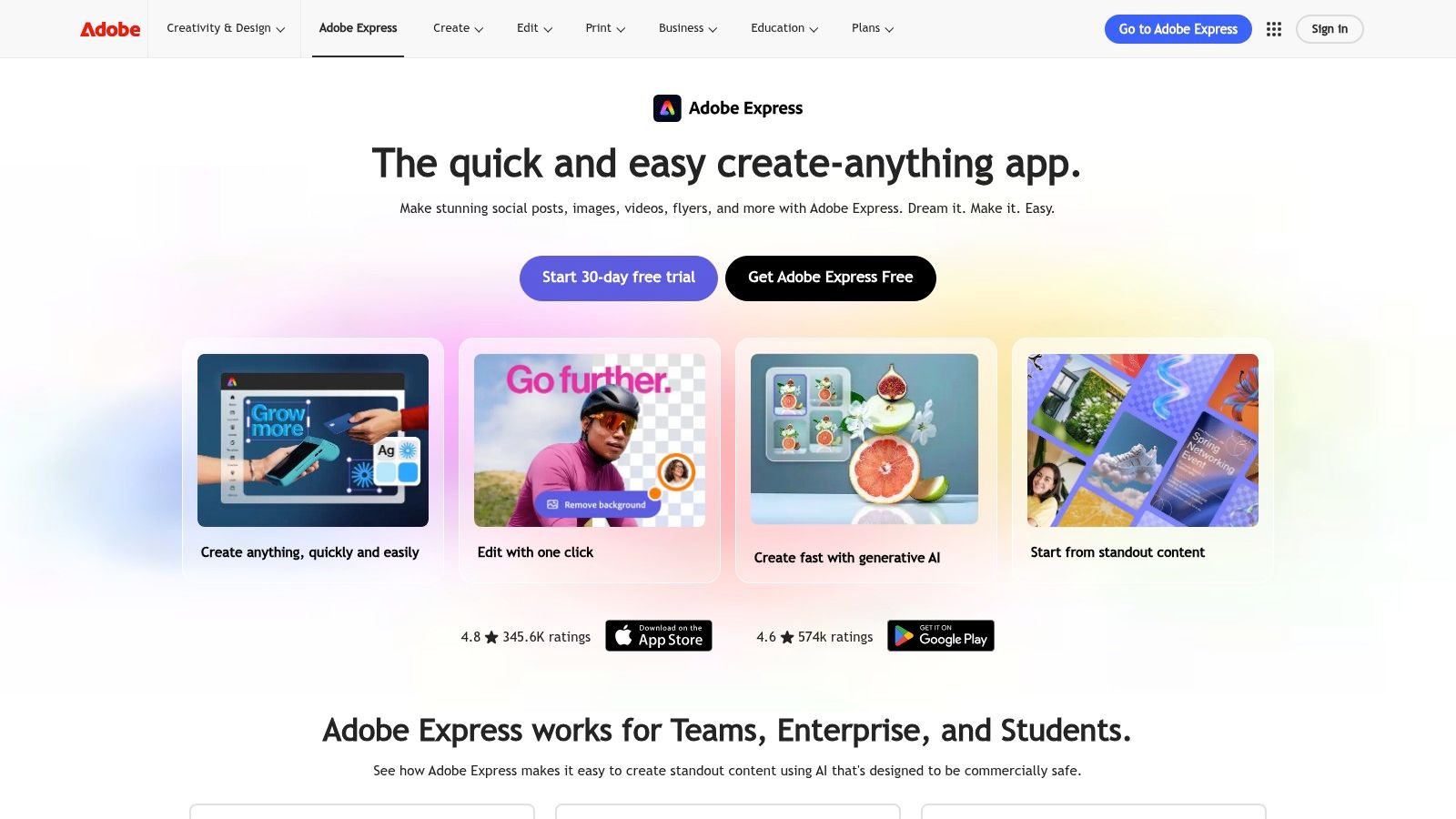
A tidy finishing pass, not a deep retouching bench
Adobe Express is most convincing when the generated portrait is already close. Its polished interface and dependable output help you move through basic corrections without learning a complex editor, but some assets and features sit behind a paid plan. Premium is needed for additional assets, automation, and brand features.
Brand kits can help teams keep portrait materials visually consistent, though those tools may be more than an individual needs for one profile photo. Start with the background and framing, then apply only the retouching required. If you're repeatedly rebuilding portraits for different roles or campaigns, creating the portrait set in a purpose-built studio can be easier than preparing every variation by hand.
5. Fotor
Fotor combines portrait retouching, basic adjustments, AI enhancement, and batch editing in one web editor. For a generated headshot, its portrait tools can address skin, blemishes, and teeth, while background or object removal helps clean up elements that make an image feel artificial. Resizing, effects, and text tools cover simple finishing tasks without requiring a separate design app.
The appeal is speed. A one-click improvement can help when an AI portrait is already convincing but looks a little flat or needs a quick cleanup. Upscaling can also be useful when the available file doesn't look crisp enough for its intended display, though inspect the output closely: enhancement shouldn't create unnatural skin texture or sharpen facial details into a plastic look.
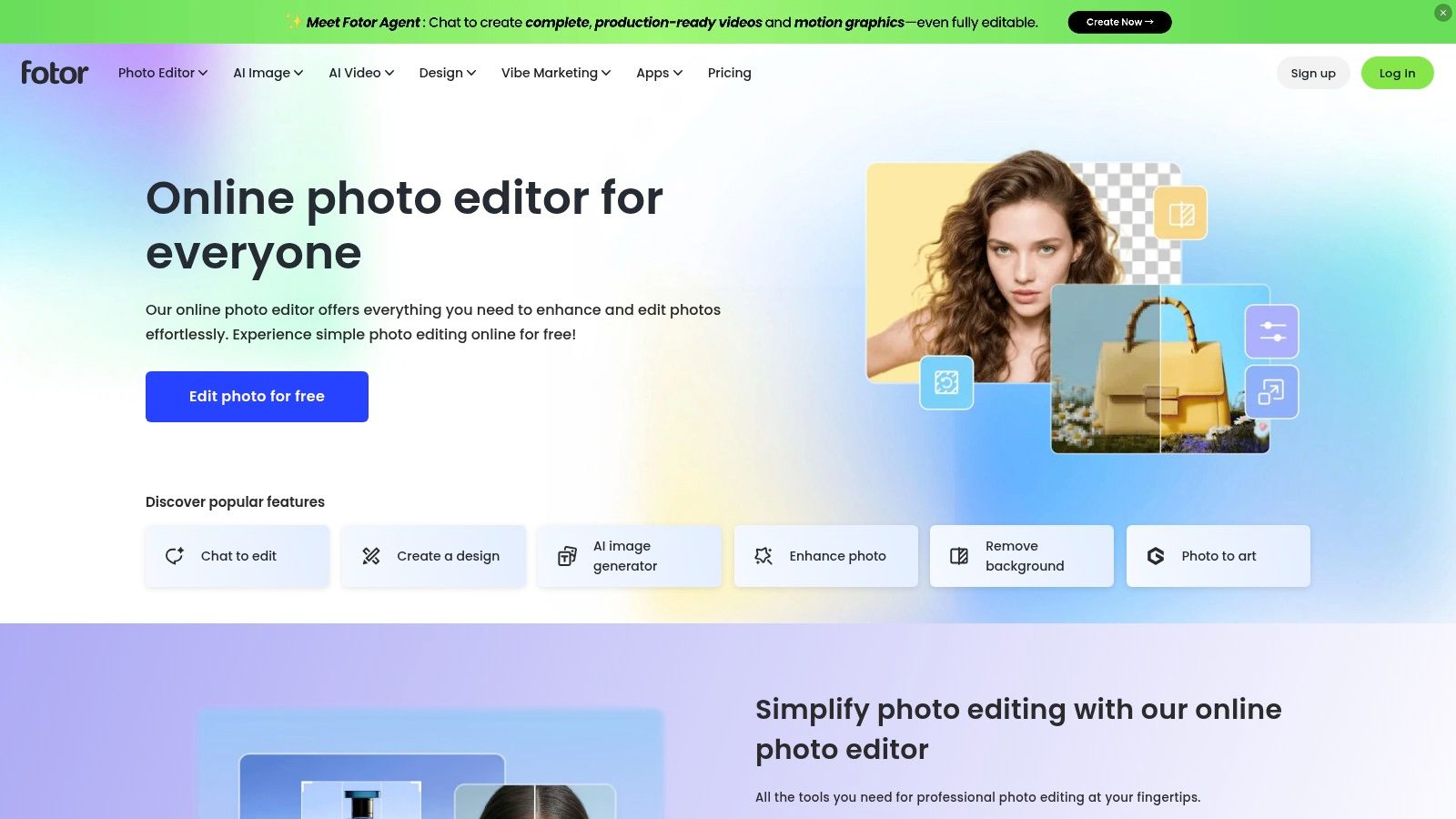
Check the feature gate before polishing
Fotor's beginner-friendly interface puts quick options within reach, and free-plan exports are described as watermark-free. Some advanced AI tools require Pro, however, and higher allowances and some batch features are paid. If the tool you need is locked, switching mid-edit can cost more time than the initial cleanup saved.
Fotor is a practical option for a straightforward portrait correction, especially if you want retouching and resizing in one place. Its limitations matter more when you need repeated AI operations or a consistent set of portraits. For a focused comparison of the two approaches, see Secta Labs versus Fotor. Use Fotor to polish a near-finished image, not to compensate for a portrait that needs extensive reconstruction.
6. BeFunky
BeFunky keeps editing approachable by combining portrait touch-up tools with filters, effects, overlays, collage making, and simple design. Its touch-up options include skin, eye, and teeth adjustments, which can help refine a generated headshot without navigating a complex layer system. An AI Photo Enhancer and Background Remover offer faster alternatives for common cleanup tasks.
The editor is particularly handy when several portraits need a consistent visual treatment. You can work toward similar crops and backgrounds, then use the collage or design tools to compare portraits or assemble a simple presentation. That's useful for a team review, although creating a collage isn't the same as delivering a properly prepared set of individual headshots.
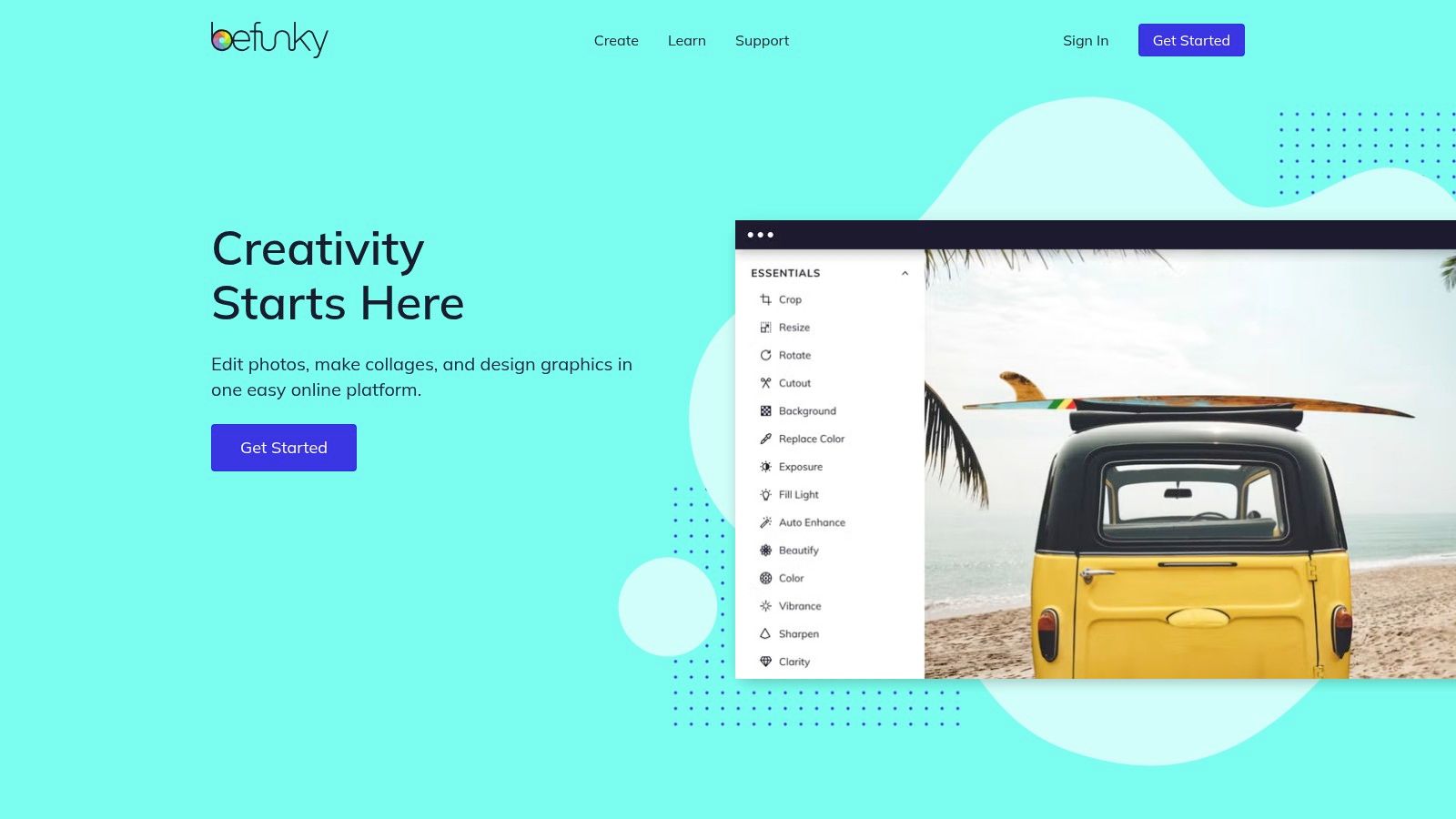
Easy to approach, less generous for repeat work
The controls suit non-experts who need a quick improvement. The trade-off appears when you depend on its AI features: many require a paid plan, and batch workflows are paid features. That can make a seemingly simple team task less efficient if each portrait needs the same cleanup.
For one generated portrait, try the basic touch-up and background tools, then review the result at the size where it will appear. Avoid pushing skin or eye effects until the face no longer looks natural. BeFunky works best when convenience matters more than fine control, but its paid batch limits make it less compelling for a large set of portraits.
7. Polarr (Web)
Polarr is a good fit when color and visual consistency matter more than structural retouching. Its selective adjustments let you target parts of a portrait, while overlays and creator styles provide repeatable looks. Face and skin tuning can help finish a generated image, and accounts work across web, desktop, and mobile.
That makes Polarr useful for a creator who wants several AI portraits to share a similar color treatment. Apply a restrained look, compare the faces side by side, and keep skin tones believable. A filter that looks attractive on one image can shift another face or outfit too far, so consistency should mean matching the intended style, not applying identical settings without checking.
Sign-in and free-tier limits
The web app requires sign-in. Some export and AI capabilities are limited on Free, and advanced features require paid plans. Those restrictions can interrupt a quick edit, particularly if the final step you need is not available until you upgrade.
Polarr's lightweight interface helps with fast refinements, but it isn't the strongest choice for removing a complex background or repairing a generated feature. Choose it when the portrait's structure is already sound and the remaining work is mostly tonal. If you find yourself making the same manual correction to every version of an AI headshot, generating a more suitable portrait variation may be quicker than repeatedly grading the wrong starting point.
8. Picsart (Web Editor)
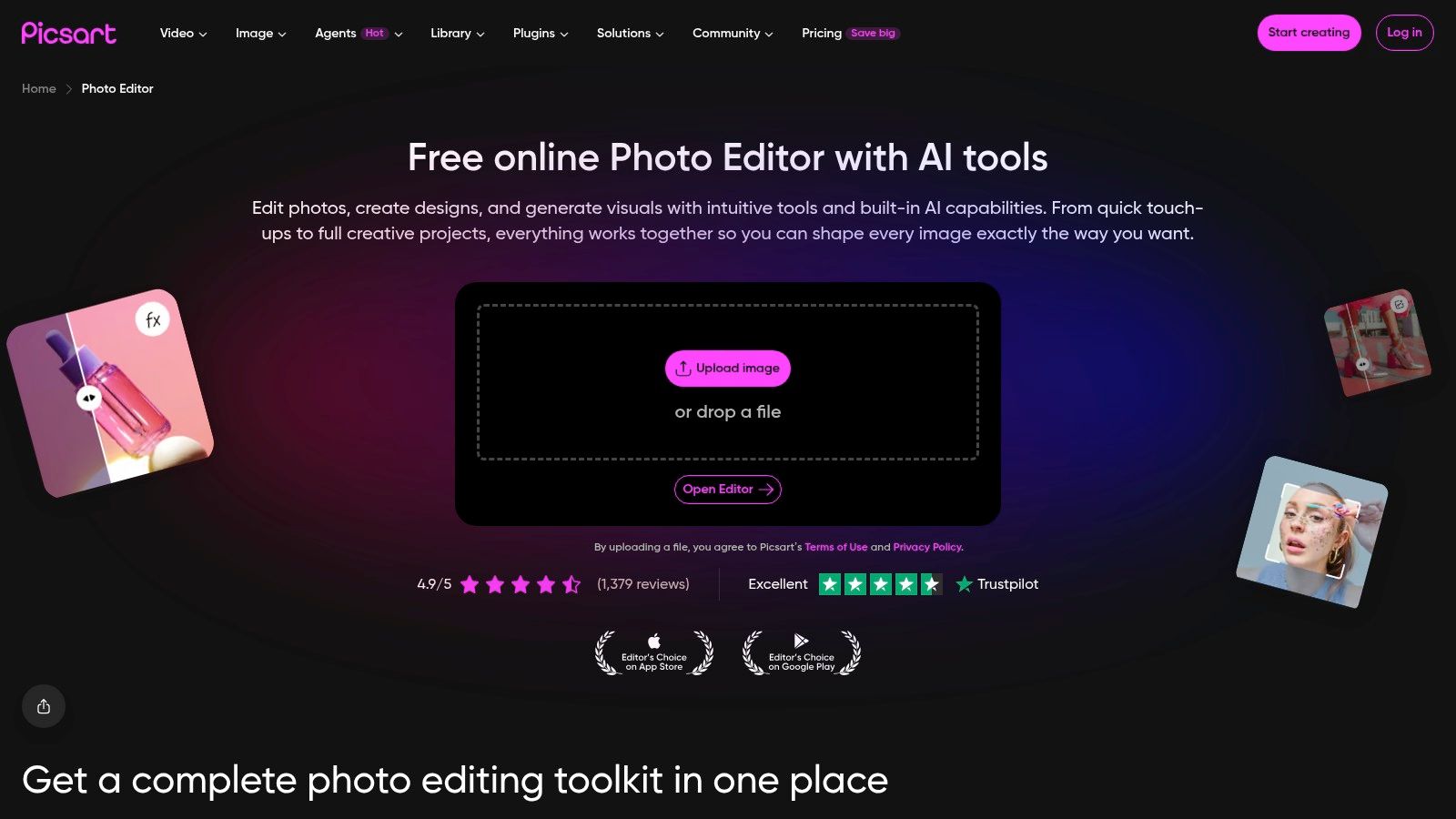
Picsart is built for quick, social-friendly editing. Its web editor combines AI background and object removal with retouching, beautify tools, filters, templates, and social-first exports. Web and mobile continuity is useful for creators who want to make a small correction at a desktop, then prepare a portrait asset for a mobile-first channel.
For an AI-generated headshot, use Picsart to remove a distracting object, make a light portrait adjustment, or prepare a crop for a social profile. The template library can turn the image into a simple promotional asset, but templates shouldn't dictate the crop for a professional headshot. Check that the face remains clear and recognizable at the final display size.
Quick creation, with assets to watch
Picsart updates its features frequently and offers a large asset library, which is useful when a portrait needs to become a broader social graphic. On Free, watermarks or locked assets can appear. Advanced tools and credits are part of Pro, so confirm that your selected elements and export are usable before building the whole design around them.
The tool's strength is moving from portrait polish to a finished social asset. Its weakness is that the extra effects and templates can encourage unnecessary editing. Keep the generated headshot's natural appearance as the priority, and use embellishments only when the intended format calls for them. If the free export adds a watermark or blocks a key feature, the time spent designing may not translate into a usable final file.
9. iPiccy
iPiccy offers a no-frills browser editor for quick portrait cleanup. It includes more than 100 tools and effects, one-click fixes, manual adjustments, and retouching options for blemishes, shine, and teeth. Text, overlays, and basic design and collage functions are also available when a generated portrait needs a simple presentation.
Its main advantage is that you can make basic changes without learning a modern, AI-heavy interface. If a headshot needs a small brightness adjustment, a blemish cleanup, or a subtle reduction in shine, iPiccy provides direct tools for that work. It also runs quickly on modest machines, which can make a simple edit feel less cumbersome.
A sensible option for basic corrections
The dated interface is the clearest drawback. Compared with newer editors, iPiccy offers fewer advanced layer capabilities, so it's less suitable when a generated portrait needs precise masking or a series of carefully separated corrections. That can mean more manual work when a background edge or clothing detail needs repair.
Use iPiccy when the image is already close and you want a straightforward browser cleanup. Keep retouching restrained, especially around skin and teeth, so the portrait remains believable. If the correction becomes more complex than a few small changes, Photopea offers more control, while a dedicated AI headshot workflow can save time when the portrait itself needs a different expression, outfit, or background.
10. LunaPic
LunaPic is a completely free, ad-supported browser editor that doesn't require signup. It offers adjustments, filters, frames, text, animated effects, and GIF editing, along with transparent-background and basic background tools. It also works on mobile browsers, which is useful when you need to make a quick change without setting up an account.
For a generated portrait, LunaPic makes sense for a simple, specific task: try a basic adjustment, add a clean frame, or work on a transparent background. It's less suited to nuanced facial retouching or building a polished professional headshot through a sequence of controlled edits. The toolset is broad, but breadth doesn't guarantee a smooth portrait workflow.
Free access versus professional control
The old-school interface can make it harder to find a clean route from upload to export. LunaPic also has limited layer-based and professional workflows compared with Photopea or Pixlr. If you only need a small correction and want to avoid signup, that may be a fair trade. If you're trying to preserve a natural face while refining clothing, lighting, and framing, the limited workflow can slow you down.
For a single task, LunaPic's no-signup access is convenient. For a finished generative AI headshot, check the result carefully and don't mistake a quick effect for a complete polish pass. If your portrait needs several coordinated changes, a more focused editing tool or a fresh AI-generated variation may take less effort.
Top 10 Free Online Photo Editors Compared
Choosing Your Editor and Knowing When to Switch
Start with a sharp, well-lit source portrait, then remove or simplify the background before you retouch the face. Apply gentle skin and blemish corrections so the image still looks like you. For a generated headshot, inspect the hair outline, clothing edges, and expression as closely as you inspect the skin. A clean edit should improve the portrait without changing the person's identity.
Check watermarks, export limits, and sign-in requirements before committing time to an editor. A free tier can be useful for a test, then become a bottleneck when you need a particular export or AI feature. Read each tool's data policy before uploading a sensitive image, especially if the editor uses cloud processing. Photopea's local browser processing is a useful distinction, but privacy practices vary across tools and can change.
Choose one editor from the list based on the job. Photopea fits detailed, layer-based corrections. Pixlr and Fotor offer faster AI-assisted cleanup, while Canva and Adobe Express make it easier to place a finished portrait into business materials. If you're still comparing visual layout options, this beginner's guide to graphic design courses offers broader context. Test your chosen editor on a single portrait before making it part of a repeat workflow.
Manual editing stops being the efficient option when you need a full set of generated headshots, each with different clothing, expressions, backgrounds, or lighting. Secta Labs offers an AI headshot and portrait studio that can generate 100 to 200+ HD images from 15 uploaded photos in under two hours. Its editing tools let you change clothing, expressions, backgrounds, hair, and lighting, as well as upscale and retouch results. The platform also offers a free trial with five sample photos, without requiring a credit card.

That route doesn't remove the need to review the output. Check that each portrait looks like the person, uses appropriate styling, and works in its intended context. You retain ownership of your outputs, and the platform's data handling is governed by its policies. If you need several polished portrait options rather than one manually edited file, try the free sample and compare the time and control with your preferred editor.