10 Simple Blue Background Options for AI Headshots in 2026
A marketing lead needs twelve team headshots in one afternoon, but every generated portrait has a different wall, gradient, or distracting office scene behind it. The faces may look polished, yet the set feels assembled rather than intentional. A simple blue background fixes that inconsistency. It keeps attention on the face, reads cleanly in directories and professional profiles, and gives every portrait a shared visual identity.
Blue also has broad familiarity. A YouGov color-preference survey summarized in Applied Sciences found blue was the most popular color in every country surveyed across ten countries and four continents. That doesn't make every blue suitable for every audience, but it makes blue a practical starting point when a team needs a neutral, recognizable backdrop.
This guide ranks ten sources and tools by how well they fit an AI headshot workflow, from flat color fields to background removal, stock libraries, vectors, and generative patterns. It also covers the details that determine whether the result works: contrast against different skin tones, clothing and hair separation, consistent lighting, thumbnail readability, and exact brand color control. When the goal is a matched portrait set rather than a folder of background files, Secta Labs can apply a selected blue across generated portraits without requiring teams to source and match each image manually.
1. SolidBackgrounds.com
SolidBackgrounds.com is the most direct choice when the requirement is exactly what the name promises, a flat blue field with no texture, pattern, or visual interpretation. Its blue collection provides single-color backgrounds in multiple tones and sizes suited to screens, profile layouts, and wallpaper-style use.
That simplicity matters in AI headshot production. A generated portrait already contains the face, hair, clothing, and lighting decisions. Adding a textured backdrop introduces another visual variable that can compete with the subject or expose inconsistencies between outputs. A clean field lets the portrait generator or editor do the work while the background stays quiet.
The trade-off is control. You can select among available tones, but this isn't a full design system with brand-color management, vector editing, or batch portrait processing. The files aren't vector assets, so print-oriented work may require recreating the color in a design application. For a LinkedIn headshot, company directory, or internal profile, though, the lack of complexity is an advantage.
Use the background as a reference or apply it during editing, then compare the result against Secta Labs' guide to blue backgrounds for portraits. If a team needs twelve portraits to share the same blue, a generator that applies the chosen color across the whole set is quicker than manually checking whether every downloaded file uses the same shade.
Transformez votre image professionnelle
Obtenez de superbes photos professionnelles générées par l'IA en moins d'une heure. Téléchargez des selfies réguliers ou des photos de groupe, choisissez parmi plus de 100 styles et nous créerons des centaines de clichés parfaits qui vous mettront en valeur.
2. Canva
Canva fits teams that need more than a blue field. Its editor supports solid and gradient backgrounds, exact color entry, resizing, and quick layouts for banners, profile graphics, presentations, and campaign assets. A marketing team can enter a brand blue, place a generated headshot over it, and add a logo or text without opening a more advanced design application.
The strongest feature for AI portraits is repeatable brand color. If a company has a defined hexadecimal value, the team can use that value rather than selecting a visually similar swatch from a stock library. That distinction matters when a set of headshots will appear beside branded website sections, social graphics, or recruitment materials.
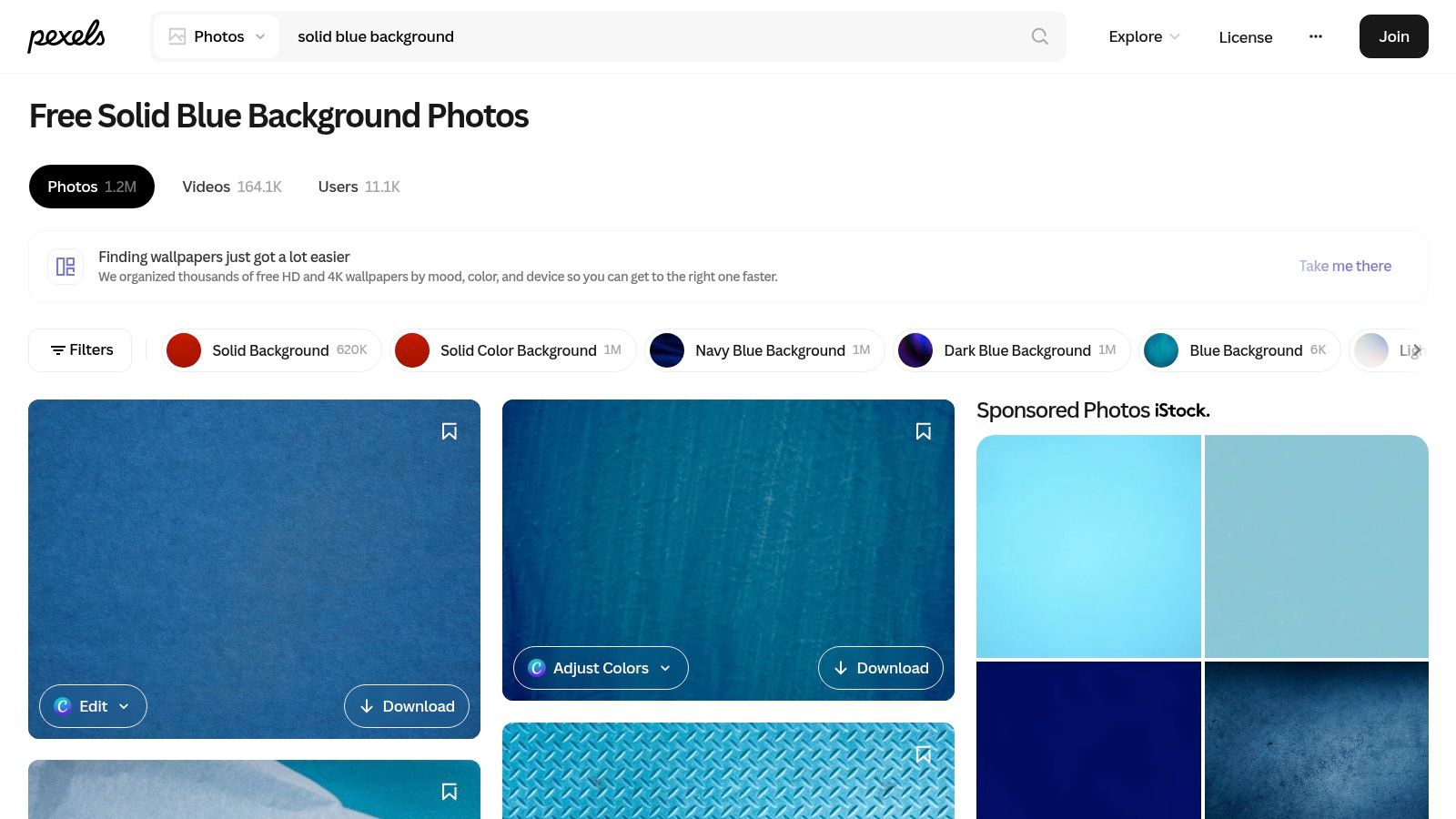
Canva works particularly well for a small batch. Create the canvas at the target dimensions, set the blue once, place the generated portrait, and export the finished composition. Its comparison with Genpire also reflects its broader role as a layout tool rather than a portrait-specific production system.
The limitation appears when the workflow grows. Export options can depend on the plan, and color rendering may differ from professional design software. Canva also doesn't replace the need to generate, retouch, and standardize a large portrait set. For a handful of branded profile assets, it's fast. For a company-wide headshot refresh, applying one selected blue inside a portrait workflow avoids repeated placement and export work.
3. remove.bg
remove.bg takes a different route. Instead of supplying a background file for manual placement, it removes the existing background and lets the user replace it with a solid or gradient blue. That makes it useful when generated portraits arrive with inconsistent scenes and the team wants to standardize them after generation.
The process is easy to understand. Upload the portrait, let the tool isolate the subject, choose a blue, and export the result. For a directory project, the practical benefit is consistency. Every employee can receive the same background treatment even if the source portraits were generated with different environments.
Where automated cutouts help
Automatic separation works best when the portrait has clear edges, controlled hair detail, and no translucent accessories crossing the shoulders. Difficult hair, soft shadows, reflective glasses, and similar-value clothing can still produce halos or missing edges. Inspect the result at the final display size, not only at a large preview.
The Secta Labs background-color guide is useful for teams deciding whether to edit each finished image or create a matched set through a portrait platform. remove.bg is attractive when the team already has finished files and needs a fast correction pass. Secta Labs is more efficient when the desired blue belongs in the generation and editing workflow from the start.
HD exports can require paid credits or a plan, so volume changes the economics. A few portraits may be quick to process. A large team library needs a deliberate export process, naming convention, and quality check for hair and shoulder edges.
4. Unsplash
Unsplash is useful when a generated portrait needs a minimal, editorial backdrop rather than a perfectly uniform color field. Its search results include plain, gradient, and lightly textured blue images that can add visual depth behind an AI headshot while remaining relatively restrained.
The appeal is speed and access. A designer can browse, download, and test several blue options without building the background from scratch. That makes Unsplash practical during concept development, especially when a team is comparing a calm navy, a brighter corporate blue, and a softer desaturated option behind the same generated face.
A free stock library also introduces inconsistency. Two files described as solid blue may differ in texture, lighting, crop, or tonal variation. Those differences can look acceptable in isolation but become obvious when a row of team portraits appears together. A background that seems flat at full size may contain a gradient or surface detail that competes with hair and shoulders in a small circular thumbnail.
Use Unsplash for exploration, mockups, and editorial treatments. For a final professional set, check the license terms, retain the asset record, and confirm that the selected image works behind every portrait rather than only behind one subject. The Secta Labs guide to professional portrait backgrounds provides a useful reference point when deciding whether the backdrop supports the face or pulls attention toward itself.
5. Pexels
Pexels offers another fast stock route, with plain, lightly textured, and wallpaper-style blue assets. It's a practical source when a team wants to test several visual directions without commissioning a custom background or learning a design tool.
Pexels is strongest for use cases where the portrait will sit inside a broader composition. A website hero, presentation cover, campaign tile, or social post may benefit from a blue field with subtle variation rather than a completely flat background. Search refinement matters, though. Terms such as “solid,” “plain,” “minimal,” and “blue wall” can produce very different results.
The asset quality depends on the contributor. Some images are genuinely simple, while others include lighting falloff, paper texture, gradients, or visible surfaces. That variation affects generated portraits because the subject's lighting needs to feel compatible with the background. A sharply lit face over a soft photographic blue wall can look composited even when the cutout is technically clean.
A practical Pexels workflow
- Search narrowly: Start with solid blue background terms, then remove images with visible texture or directional light.
- Test at thumbnail size: Shrink the generated portrait to the size used in the directory or profile interface.
- Compare the full set: Apply the same asset to several faces and check whether hair, skin, and clothing remain distinct.
- Record the chosen file: Keep the source and license information with the campaign assets.
Pexels works well for quick drafts and low-friction experimentation. It is less suitable when the team needs an exact hexadecimal brand color or a single blue applied consistently across a large AI-generated portrait library.
6. Shutterstock
Shutterstock is a stronger fit when licensing clarity, search precision, and asset consistency matter more than free access. Its library includes flat blue fields, gradients, minimal compositions, and multiple orientations. Filters help narrow results by color, style, and layout before the team starts testing portraits.
That control matters for professional communications. A marketing department can search for a specific blue family, choose a background with enough negative space for a face, and keep the same visual treatment across LinkedIn banners, website graphics, and internal profiles. Enterprise and API options can also support larger asset workflows, although the team still needs to manage how each file is applied to generated portraits.
The limitation is that stock licensing doesn't make an asset exclusive. Another organization may use the same background, and a stock image can still contain subtle tonal variation that makes headshots look less uniform. Premium sourcing solves access and rights questions more directly than it solves portrait consistency.
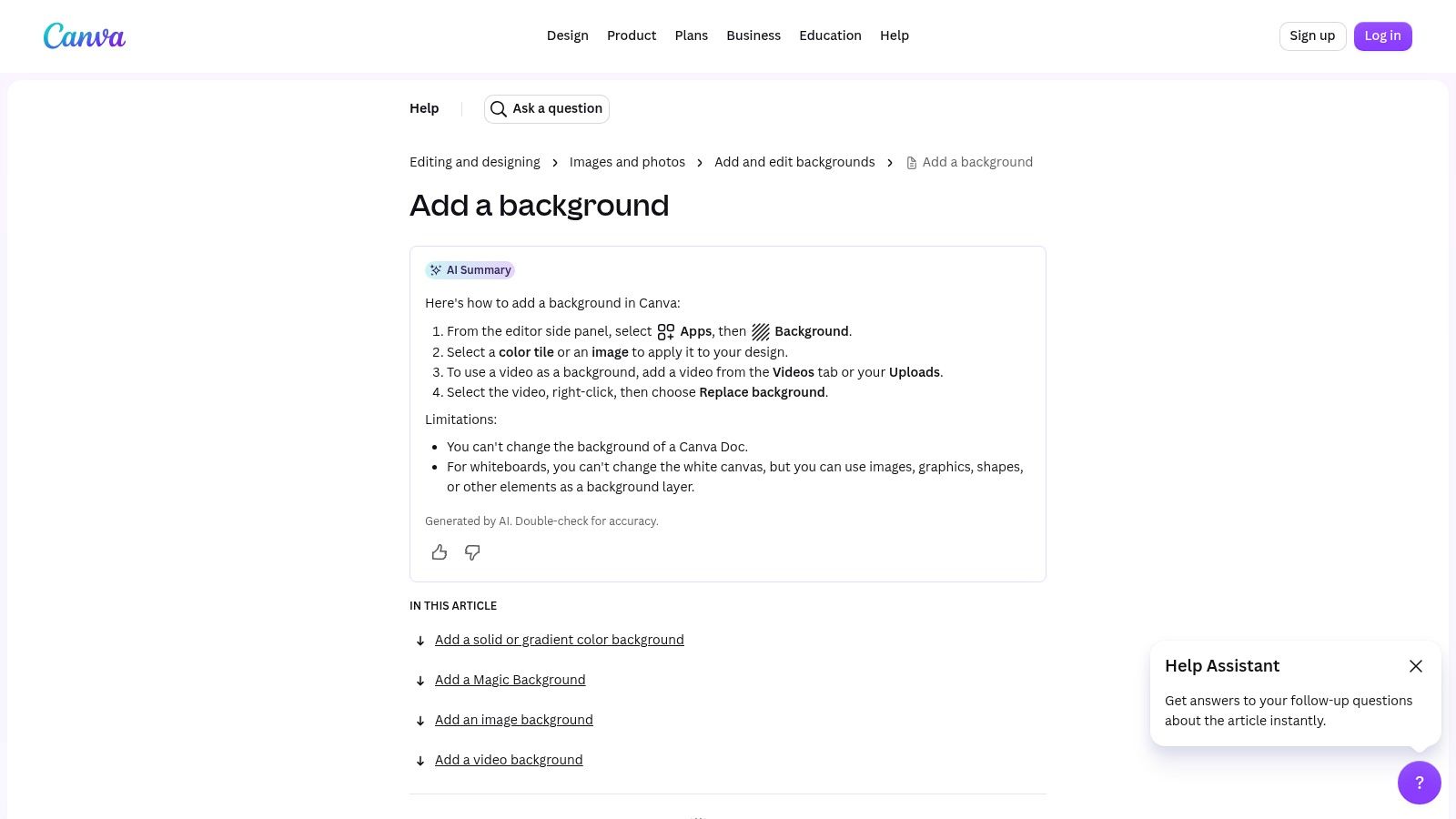
Choose Shutterstock when the background itself must be a licensed creative asset. Choose a portrait editor when the operational problem is applying one exact blue across many generated faces. The distinction saves time. Stock search finds the file, while a headshot workflow keeps the background, lighting, crop, and retouching aligned across the set.
7. iStock by Getty Images
iStock gives teams a tiered stock option through Essentials and Signature content. That structure helps when a company needs predictable quality for routine profile images but wants the option to explore more distinctive or exclusive assets for a campaign.
Its filters cover color, style, and exclusivity, which makes it easier to distinguish a flat blue field from a gradient or abstract composition. Credit packs and subscriptions can also suit teams that regularly produce branded materials rather than needing a single background once.
For AI headshots, the most useful iStock assets are the ones that stay subordinate to the face. A clean field with controlled tonal change can work behind a generated portrait, but overly cinematic stock lighting may conflict with the subject's synthetic lighting. The mismatch becomes more visible around hair, cheeks, and jacket edges, especially when the background contains a bright area directly behind the head.
Match the asset to the portrait
- Essentials content: Suitable for straightforward profile and directory applications where the background should remain unobtrusive.
- Signature content: More appropriate when the background has a distinctive role in a campaign or branded composition.
- Extended rights: Review them when the portrait will support broader commercial distribution or repurposing.
Paid stock provides a clearer licensing path, but it doesn't remove the need for visual testing. Before applying an iStock file across a team, compare it with light, medium, and dark clothing and with the different skin-tone appearances represented in the group. A background that flatters one generated face may reduce separation for another.
8. Adobe Stock
Adobe Stock is well suited to teams already working in Photoshop, Illustrator, or another Creative Cloud application. Its results include photos, vectors, templates, gradients, and textures, so designers can move from a simple blue field to a scalable brand asset without changing platforms.
Vector backgrounds are particularly useful for layouts that may be resized across web, presentation, and print applications. They avoid the softness that can appear when a small raster file is enlarged. Adobe's metadata and Creative Cloud integration also make it easier to inspect resolution and edit the asset before placing a generated portrait.
That flexibility can become unnecessary for a straightforward profile image. A designer may spend more time choosing among formats, editing the asset, and checking exports than the portrait itself requires. Stock access also involves subscriptions or credits, while extended uses can require additional licensing.
Use Adobe Stock when the headshot belongs to a larger design system. For example, a company might use a vector blue field behind portraits on a careers page, then adapt the same field for recruitment slides and social graphics. For a simple directory update, a flat generated color or integrated background editor is usually faster.
The best Adobe workflow is to separate background design from portrait generation only when the design team needs that control. Otherwise, select the brand blue once and let the portrait platform apply it consistently. That reduces file handling and avoids subtle differences between manually edited portraits.
9. SVGBackgrounds.com
SVGBackgrounds.com is aimed at teams that want editable vector patterns rather than a completely plain color field. Its backgrounds can be recolored, adjusted, and exported as SVG or PNG, making them useful for sharp web graphics and scalable campaign layouts.
The appeal for AI portraits is control over subtle structure. A team can use a blue base with a restrained pattern, reduce opacity, and check whether the face remains the strongest visual element. SVG output keeps the design crisp across sizes, while lightweight files are convenient for web pages and digital assets.
Keep the pattern behind the person
Pattern-based backgrounds need more discipline than flat fills. Fine lines can intersect with hair, create false edge activity, or make the background appear to leak through a cutout. Dense shapes behind the eyes and mouth can also compete with facial recognition in small profile images.
Set the hue to the approved brand blue, lower the pattern intensity, and test the result with several generated portraits. If the pattern remains noticeable before the viewer reaches the face, it's probably too strong for a professional headshot. SVGBackgrounds.com is a good choice for a branded website section or campaign graphic, but it isn't the natural choice when the requirement is a plain blue background.
For teams using Secta Labs, the pattern can remain a separate campaign treatment while the core headshot set uses one consistent flat blue. That division keeps everyday profiles readable and reserves visual variation for placements where it serves a clear design purpose.
10. Haikei
Haikei is the most generative option in this list. It creates blue gradients, blobs, waves, blurred shapes, grain, and other minimal compositions, with SVG and PNG export. Designers can adjust complexity, contrast, resolution, and palette while iterating quickly.
That makes Haikei useful when “simple” means modern and designed rather than completely flat. A soft blue gradient can give a generated portrait more depth without introducing a photographic location. A restrained wave or blurred shape can also create a visual system for a careers page or personal-brand collection.
The danger is overdesign. More controls create more opportunities to make the background compete with the person. Strong contrast behind the head, visible grain around hair, or a shape that cuts through the shoulders can make the portrait feel like a graphic composition instead of a professional headshot.
Haikei is best for controlled experimentation. Generate several blue variants, keep the subject, pose, clothing, crop, and facial expression consistent, then compare the backgrounds rather than changing everything at once. For a large headshot set, a platform that can apply one chosen color across all generated images is usually easier to manage than exporting and matching custom backgrounds individually.
Simple Blue Background: Top 10 Resource Comparison
Pick One Blue and Build Your Headshot Set Faster
Start with one flat blue and test it against a generated sample that represents the skin tones, hair colors, clothing, and styling in your group. Don't approve a background because it looks attractive behind one face. Check whether dark hair separates from dark blue, whether pale clothing disappears into light blue, and whether warm or deep skin tones remain the visual focus.
Contrast matters more than the color name. A 2025 visual-perception study summarized by DayGlo recorded 71% accuracy for white text on blue across 55 observations, while black text on blue reached 28% accuracy. Those results concern text, not generated portraits, but the design lesson transfers. Blue alone doesn't guarantee clarity. The foreground, luminance, saturation, and surrounding elements determine whether the image remains easy to read.
A separate color-perception study reported in the Journal of Marketing and Social Research associated blue with trust for 74% of participants and competence for 68%. Treat that as a testing prompt, not a universal rule. Audience, category, culture, clothing, skin tone, and platform crop can all change how the same blue feels.
Use this production sequence:
- Choose the base: Begin with a flat, medium or dark blue that leaves visible separation around the face and shoulders.
- Test the wardrobe: Compare light shirts, dark jackets, saturated colors, and neutral clothing against the same background.
- Inspect the edges: Look for blue halos in hair, shoulders, glasses, and translucent fabrics.
- Check the thumbnail: Review the portrait in the small circular or square crop used by the target profile.
- Keep lighting consistent: Soft, even lighting on each generated subject helps the backdrop read as one intentional color.
- Create alternate versions: Keep a light, mid-tone, and dark blue available when one shade cannot serve every subject or placement.
Free libraries are useful for drafts. Canva works when a designer needs exact brand color and layout control. remove.bg helps when existing portraits need rapid background replacement. Paid stock is appropriate when licensing and asset metadata matter. SVGBackgrounds.com and Haikei fit campaigns that need restrained patterns or gradients rather than a completely flat field.
Secta Labs is the more direct route when the objective is a finished, on-brand collection rather than a set of files to assemble. Users upload 15 personal photos, choose from over 150 styles, and can generate 100 to 200 or more HD images in under two hours, according to the platform information provided by Secta Labs. Its editing tools support background changes, including a selected blue shade through a color picker or hexadecimal entry such as #4A90E2, along with clothing, expressions, hair, lighting, upscaling, and retouching adjustments.

That workflow is especially useful for companies preparing 100 to 200 or more portraits for employees, campaigns, or professional profiles. Instead of sourcing one blue file, placing it behind every portrait, checking crops, and correcting mismatched edges, the team can establish the background direction inside the same AI headshot process. Plans, export rules, and licensing terms can change, so verify the current details before publishing.
Choose your blue, generate a representative sample, and review it at the exact profile size your customers or employees will use. If the faces remain clear, the edges stay clean, and the color supports the brand without overpowering the person, apply that decision across the full set. To create a consistent AI headshot collection with background, lighting, and retouching handled together, visit Secta Labs and test the blue background workflow with your next portrait batch.