Photo Retouching Free Online: 10 Tools Compared for 2026
It's 11 p.m. and a consultant has just learned her speaker profile needs a headshot by morning. She uploads a selfie to a free editor, smooths her skin in seconds, and exports it. In the small preview it looks polished. At full size on a recruiter's screen, the texture turns plastic, her expression looks filtered, and the portrait no longer quite feels like her.
That's the gap this list tests. Every tool below is judged on three things, not feature count. First, does it retouch a generated portrait enough without erasing identity? Second, does the free tier stay usable once credits, watermarks, and export limits kick in? Third, what happens to your uploaded face and metadata? The stakes are real. The PCMA summary of LinkedIn related research reports that 71% of surveyed HR professionals, business owners, and managers admitted rejecting a candidate solely because of a poor LinkedIn profile picture, even when the candidate was otherwise qualified.
For quick polish, photo retouching free online is often enough. For a portrait that has to survive LinkedIn, a corporate directory, and an actor portfolio at once, limits show fast. Sellers testing looks can also learn from a merchandising guide to synthetic model imagery, where believable faces matter as much as speed. Use these verdicts to match the tool to the job, not to the longest menu.
1. Fotor
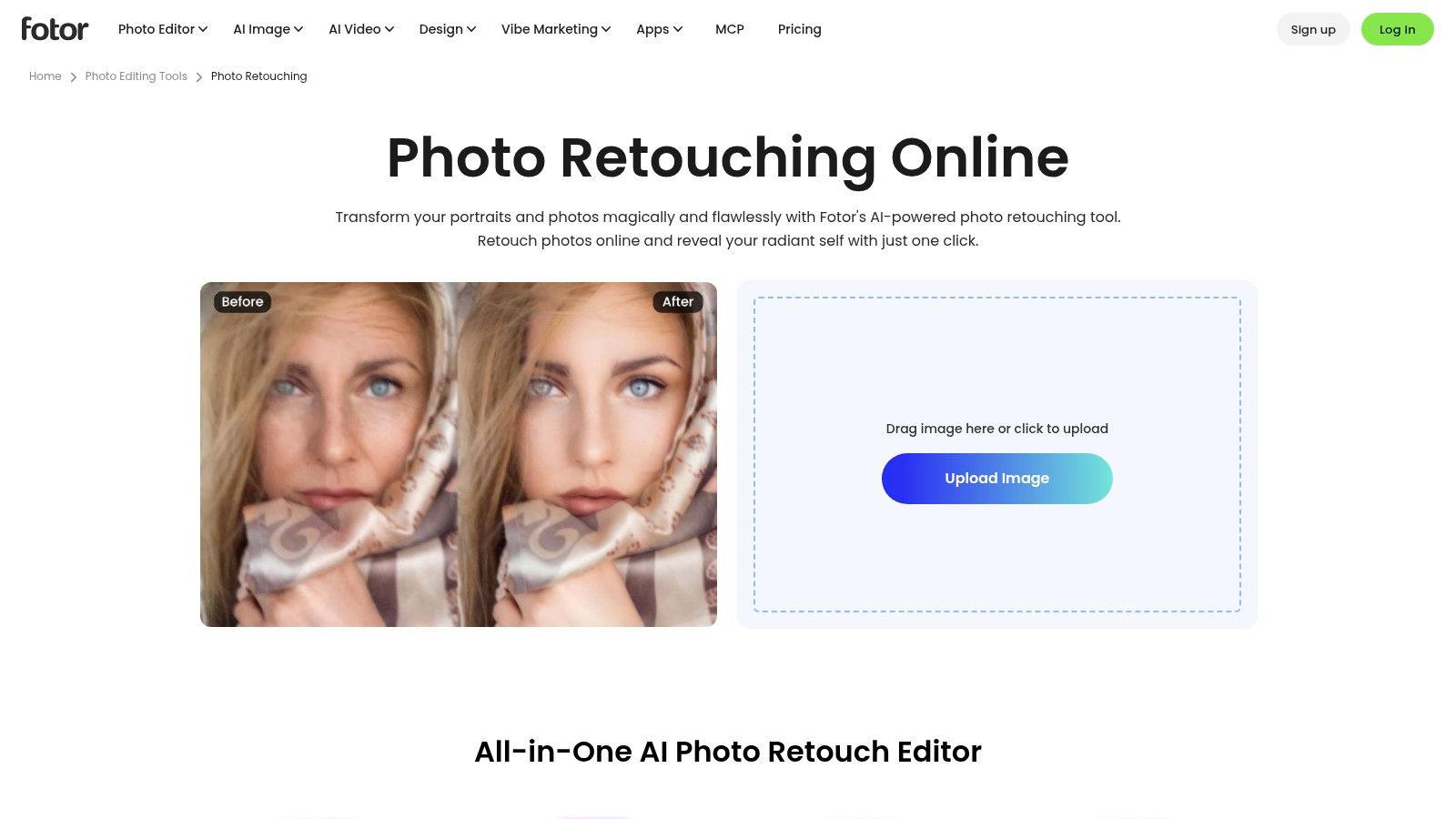
Fotor's online retoucher is the fastest way to rescue a decent AI headshot with minor flaws. Drag the strength down, let it reduce a temporary blemish or soften a wrinkle, then stop before pores disappear. On a generated LinkedIn portrait, that light touch keeps the face recognizable while removing the small distractions viewers notice first.
- AI skin and portrait retouching: Smooths skin and balances a face in one pass.
- Blemish and wrinkle removal: Handy for stress spots the generator amplified.
- Teeth whitening and red-eye correction: Fixes two flaws that read as careless.
- Object removal: Cleans a stray logo or background clutter near the shoulder.
Its pros are speed, portrait specific tools, and free online access. The catch is that some advanced features need a paid plan or credits, auto edits can need dialing back, and export or resolution limits may apply. That matters professionally, because a 2024 Ringover study cited in industry reporting found recruiters correctly identified AI images only about 40% of the time. Over-smoothing pushes you toward the detectable side.
Verdict: Use Fotor for a single LinkedIn cleanup before a deadline. Don't rely on it for a full set of executive variations, because you'll spend longer checking credits and undoing plastic skin than generating stronger portraits in the first place.
Transforme su imagen profesional
Consigue impresionantes retratos profesionales generados por IA en menos de una hora. Sube selfies normales o fotos de grupo, elige entre más de 100 estilos y crearemos cientos de instantáneas perfectas que representen lo mejor de ti mismo.
2. BeFunky
Choose BeFunky's Touch Up tools when you want control tool by tool instead of one beauty button. A real estate agent can whiten teeth slightly, leave laugh lines alone, and fix only the shine on her forehead. That restraint keeps a generated portrait trustworthy for listing pages and yard signs, where clients will meet her in person soon after.
What you control
- Blemish and wrinkle tools: Target one mark without resurfacing the whole face.
- Skin smoothing: Works best at low strength on cheeks and forehead.
- Teeth whitening and red-eye: Small fixes that lift a corporate crop fast.
- Digital makeup: Use sparingly for creator portraits, skip it for casting.
Individual corrections are its strength, and basic editing is available free. But some advanced touch up features are premium, the free tier sits below Plus and Pro, and working through many options takes longer than a one click tool. For an actor, that manual pace is useful because you can preserve a mole or scar that casting needs to see.
Verdict: BeFunky handles a careful, identity true polish for one profile photo well. It can't replace a studio workflow when you need ten consistent expressions and outfits, because every face adjustment still happens one image at a time.
3. Pixlr
Pixlr's browser editor suits hands on cleanup. Say your generated consultant portrait looks sharp, but there's a warped earring and a stray hair across one eye. Heal and Clone let you repair those pixels yourself instead of asking an auto beautifier to repaint the whole face. You'll get a more believable result, if you've got the patience.
- Heal and Clone tools: Remove blemishes, flyaways, and small AI artifacts precisely.
- Adjustable brush sizes: Match the brush to a pore, not the entire cheek.
- Sharpening and tonal tools: Restore punch after a soft generation.
- Additional AI editing tools: Speed up cutouts and broader fixes.
The upside is real manual control for portraits and general cleanup, with free online tools available. The downside is a longer learning curve, plan dependent AI features, and slower manual work. Performance also varies by device, since UL Solutions' Procyon Photo Editing Benchmark treats CPU, GPU, and storage as joint factors and lists an 8 GB memory minimum for its tested workflow. Test Pixlr on your actual laptop before a deadline.
Verdict: Pick Pixlr to repair one strong portrait with visible artifacts. Don't pick it to produce a board ready headshot from a weak selfie, because no clone stamp fixes bad lighting or a casual pose.
4. Canva
A consultant can retouch a portrait, crop it for LinkedIn, then place it in a webinar banner and speaker one-sheet without switching tools. Canva's AI face editor is built for that kind of design workflow. Its face editing is light, so treat it as a finishing step rather than a way to rebuild a weak portrait.
- Skin smoothing slider: One control for softening skin. Keep the effect subtle to retain natural texture.
- Auto adjustment and cropping: Reframe a portrait for different layouts and platforms.
- Design and layout features: Build posts, presentations, and banners around the image.
- Common export formats: Deliver finished assets in familiar file types.
Canva is easy for beginners, combines editing with design, and says its free editor adds no watermark. Its limits are shallow face retouching, paid cleanup tools such as Magic Eraser, and fewer advanced options than specialized editors.
Verdict: Use Canva to place a polished portrait in marketing layouts for consultants and creators. Choose another editor for an actor headshot that needs selective, casting-safe retouching.
5. Photopea
If privacy decides the tool, start with Photopea. It offers Photoshop style healing, layers, and masks in the browser, and says files are handled locally rather than uploaded to its servers. For an unpublished executive portrait or an employee roster, that local handling is a practical advantage, not a nice footnote. Our deeper comparison of professional photo editing online free covers how manual control compares with automated portrait tools.
- Spot Healing Brush and healing tools: Removes marks while keeping surrounding texture.
- Patch tools: Repairs a larger AI artifact on a collar or backdrop.
- Layers and masks: Retouch skin on one layer, then lower opacity to taste.
- PSD file support: Fits existing designer handoffs and archived projects.
Privacy isn't trivial here. A 2026 test of 14 online editors found only four processed images entirely client side, so local handling separates Photopea from many upload first rivals. The trade off is complexity. Results depend on your skill, and manual frequency separation takes practice most busy professionals won't invest.
Verdict: Photopea is the pick for confidential, precise fixes on a finished generated portrait. It can't create the portrait variations themselves, so it won't save a company that still needs consistent headshots for fifty people.
6. Picsart
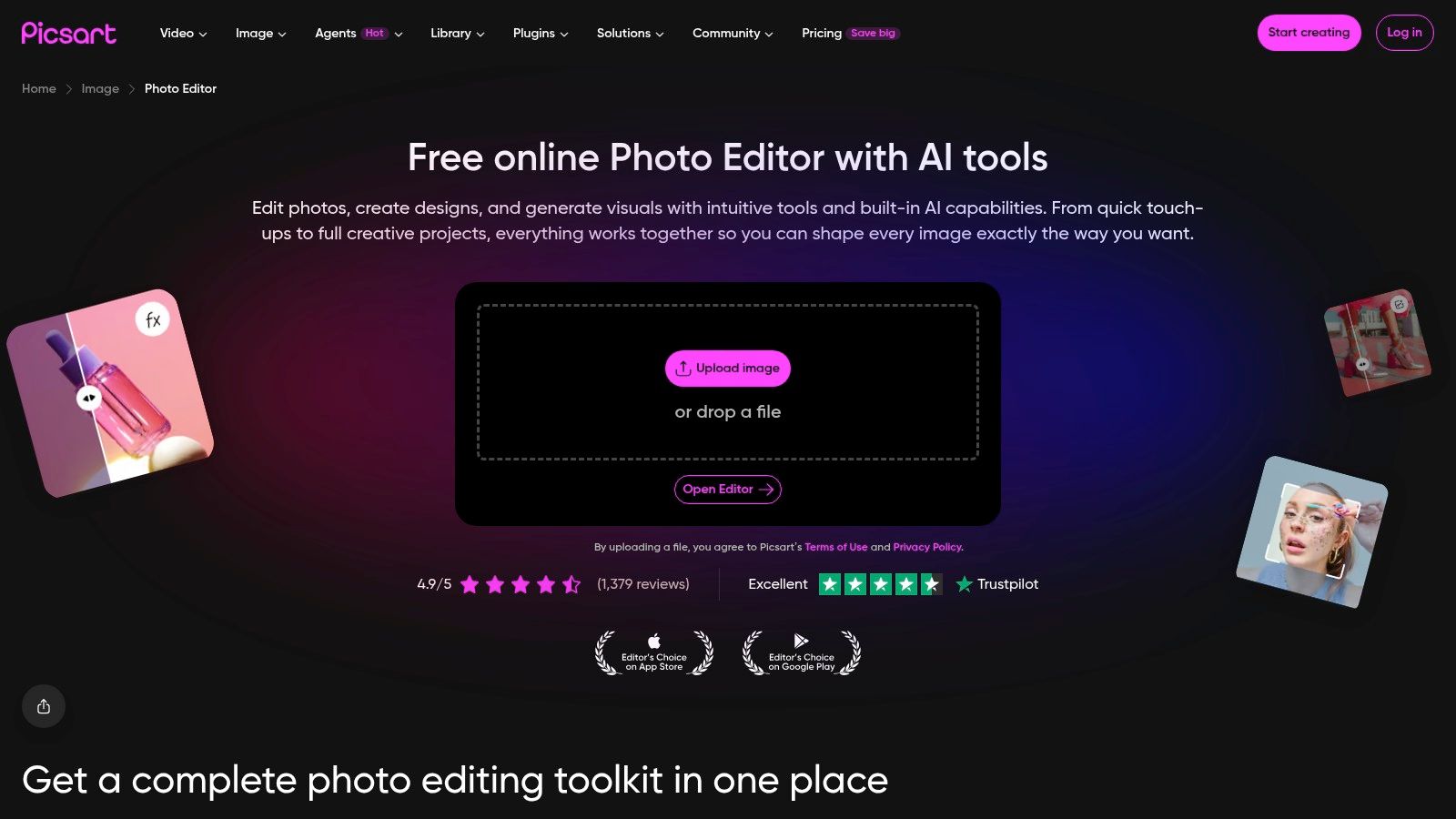
Picsart's browser photo editor mixes portrait retouching with backgrounds, filters, and design tools. A content creator can clean a blemish, swap a dull backdrop for a branded color, and export matching thumbnails in one session. That breadth is fun and fast, but it also tempts you to overstyle a face that should stay credible.
- Portrait retouching and blemish fixes: Quick cleanup for social ready portraits.
- Object removal: Clears props or strangers the generator invented.
- Background editing: Swaps settings without regenerating the whole image.
- Filters and design tools: Builds graphics for launches and personal brands.
Selected free features work in the browser, and quick fixes sit beside creative tools. On the other side, the interface can feel busy, some content needs a subscription, and premium options mix with free ones. Guard your intent, since Softlookup's roundup of free online image editors frames the core risk clearly, free access can still mean daily limits, watermarks, starter credits, or noncommercial restrictions.
Verdict: Use Picsart for creator and coach portraits that need graphics around them. Don't use its filters for LinkedIn or real estate headshots, because stylized skin and backgrounds erode the trust those profiles need to earn.
7. iPiccy
Sometimes you just need a portrait presentable in five minutes. iPiccy's free online editor gives you one click auto fix, filters, text, overlays, and collage tools without a complex workspace. A job seeker can lift a flat generated portrait, crop it tight, and upload it to a job board the same afternoon.
The quick toolkit
- One click auto fix: Lifts dull exposure and color in a generated portrait.
- Photo effects and filters: Adds style for casual avatars and community profiles.
- Text and overlays: Labels portfolio contact sheets or event graphics.
- Collage maker: Compares several headshot options side by side before choosing.
Its strengths are a simple entry point, creative range, and an editor the official site describes as free. Its weakness is specialization. It's less focused on portrait retouching than Fotor or BeFunky, browser compatibility is worth verifying, and tools or export requirements may vary.
Retouching itself is old, since the Metropolitan Museum of Art's Faking It exhibition documents manipulated images from the 1840s onward. Tools got faster, but the standard didn't change. The face still has to look like a person.
Verdict: iPiccy handles a casual avatar or internal directory photo when speed beats finesse. It can't deliver a portfolio grade actor portrait, because auto fix can't make selective, identity preserving decisions.
8. Adobe Express
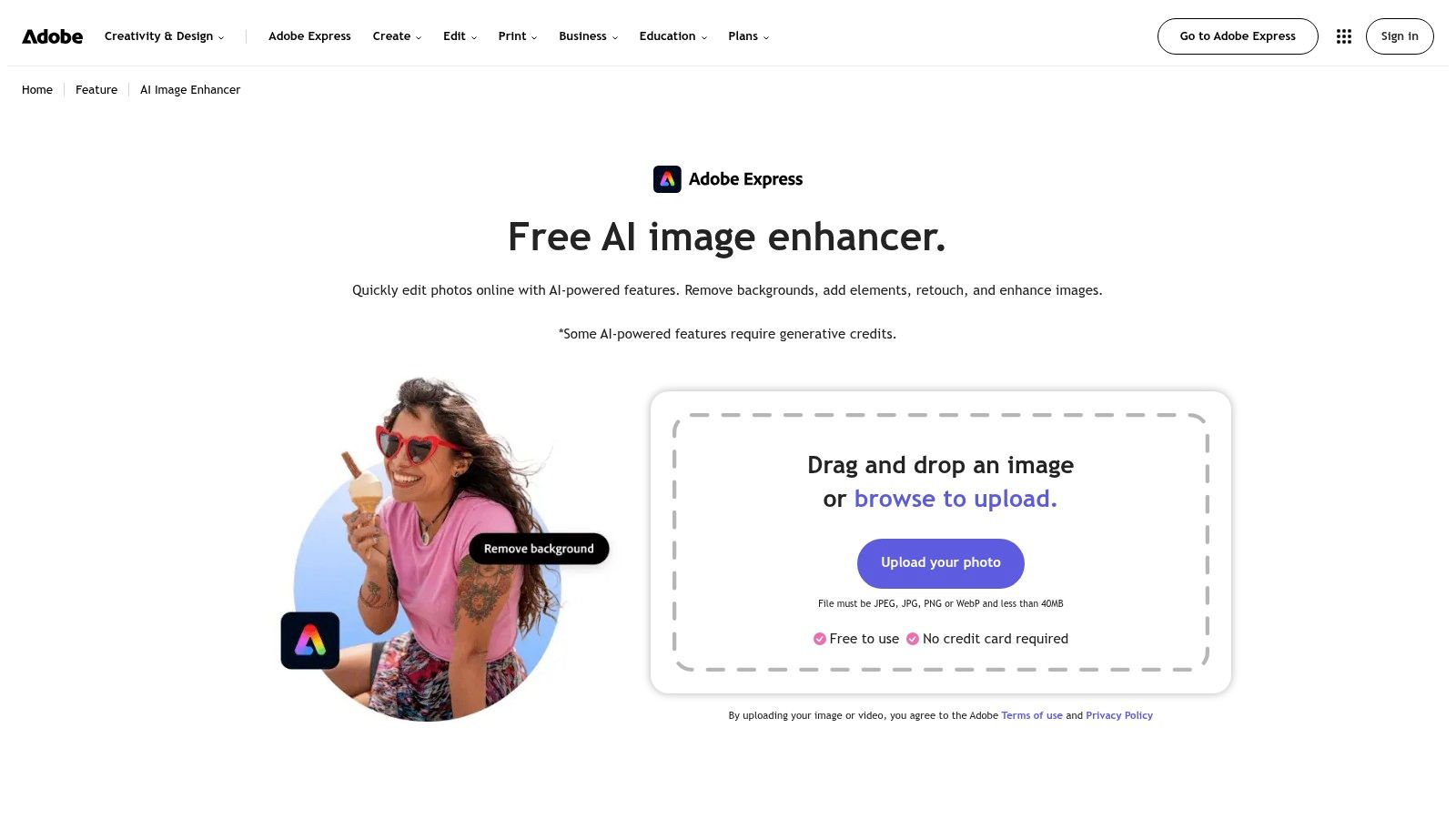
Adobe Express image enhancement is built for light adjustments before sharing. A marketing manager can sharpen a generated team portrait, remove its background, and place it into an org announcement template in minutes. It's finishing software, not a beauty retoucher, and judging it that way keeps expectations honest.
- Photo adjustments and effects: Corrects brightness and color on flat generations.
- Image enhancement and sharpening: Adds clarity for directories and slides.
- Background removal: Isolates a portrait for branded templates.
- Templates and design tools: Turns one headshot into finished business content.
A free plan is available, and editing plus layout in one place saves handoffs. But detailed face by face retouching isn't its specialty, some AI features require generative credits, and availability varies by plan. Scale explains the credit model. A historical review of digital image tampering reports about 10% of color photographs published in the United States were digitally altered or retouched as early as 1989, so demand for convenient editing has been mass market for decades.
Verdict: Adobe Express is right for sharpening and publishing an already strong AI portrait. It can't rescue waxy skin or uneven eyes, so fix the face elsewhere or generate a better portrait before you lay it out.
9. VanceAI Portrait Retoucher
VanceAI's portrait retoucher takes the opposite approach to Pixlr. You upload, it processes, you review. For a salesperson with one generated headshot marred by blemishes, wrinkles, and yellowed teeth, that hands off flow is appealing. The question is whether the automated result still looks like you, since you get less control over each facial change. Our guide to image retouching online explains where automated cleanup helps and where manual review matters.
- Automatic portrait retouching: One upload and process workflow, no brushes.
- Blemish and wrinkle cleanup: Broad correction across the whole face.
- Tooth discoloration correction: Brightens smiles for client facing profiles.
- Optional image enhancement: Sharpens output after the beauty pass.
It's designed specifically for portraits and free to start, but free use is limited by credits and regular use may need a paid plan. Restraint matters for bodies too, as covered in this look at ethical risks of AI body editing. Identity is the deeper test. A 2025 study in Cyberpsychology used 396 participants across human and AI photo conditions, a reminder that viewers judge portraits socially, not just technically.
Verdict: Use VanceAI for a fast, broad cleanup of one generated portrait you'll inspect closely. Don't use it for casting or executive branding where every distinguishing feature must stay intact, because you can't direct each change.
10. LunaPic
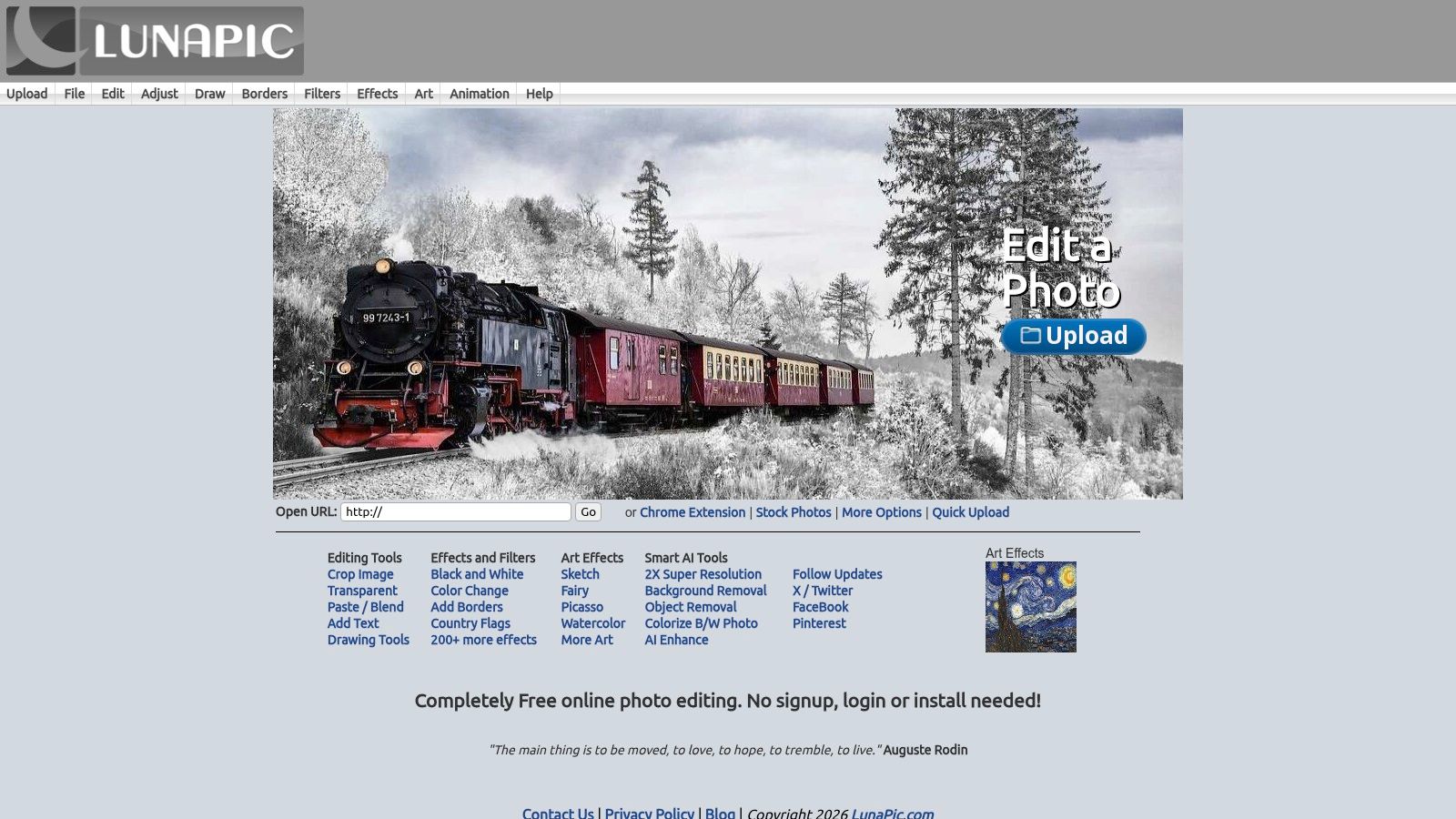
LunaPic says it needs no sign up, login, or installation, which makes it handy on a borrowed laptop before a conference. You can crop a generated portrait, adjust it, remove an object, or try AI enhancement and background removal. The interface is utilitarian, so expect to hunt through menus instead of following a guided portrait flow. Comparing finished results in our look at photo retouching before and after shows how quickly small edits change perceived credibility.
- Editing without an account: Starts fast when you're away from your own machine.
- Crop and adjustment tools: Handles framing and basic tone for profile uploads.
- Large effects library: Useful for fun avatars, risky for professional faces.
- Object removal and AI enhancement: Covers quick cleanup beyond simple crops.
Free access and breadth are the draw. Specialization is the cost, and some features are less consistent than dedicated retouching tools. For a neighborhood association bio, that's fine. For a corporate roster, inconsistency across faces looks unprofessional fast.
Verdict: LunaPic suits a quick, no account crop or effect for low stakes use. It can't anchor a professional headshot workflow, because portrait quality and consistency aren't what it's built to guarantee.
How the free retouchers compare on portrait depth, access, and control
When a Free Retoucher Is Enough and When a Headshot Studio Pays Off
Use this decision rule. If you've got one good generated portrait and one small flaw, a free editor is enough. Remove the blemish in BeFunky, repair the artifact in Photopea, or sharpen it in Adobe Express, then ship it. A casual social avatar, an internal directory photo, or a single event bio doesn't justify more process. Keep edits honest, keep skin texture, and check the export at full size before anyone else sees it.
Move to a dedicated studio when the same face must work in several professional contexts at once. The stakes compound quickly, since a LinkedIn data summary reported by Onrec says profiles with professional photos receive up to 21 times more profile views and up to 36 times more messages than profiles without photos. Say an HR lead needs forty consistent employee portraits, or an actor needs commercial, theatrical, and corporate looks that all read as the same person. Retouching unrelated selfies one by one won't create that consistency, no matter how patient you are.
That's the job we built Secta Labs for. You upload 10 to 20 photos once and receive hundreds of studio grade portraits in under an hour. Because the portraits are generated from your own images, you can choose a neutral corporate look for LinkedIn, a warmer networking portrait, and an executive style image from one session. Then you refine the winners instead of rebuilding them, using our editing tools to change clothing, expression, background, hair, and lighting, upscale the result, or retouch skin while preserving natural texture. Your uploaded data is kept private and secured during editing, and generated images are usable for personal and commercial purposes.
Compare the two afternoons. In the free path, a consultant retouches six selfies in four editors, hits a credit wall twice, and still ends up with mismatched lighting and one usable crop. In the studio path, she uploads once, reviews hundreds of consistent options, swaps one outfit, changes one background, and downloads a set that covers LinkedIn, her firm bio, and her next keynote. That's not more editing. That's less editing, because generation did the heavy work and retouching only finished it.
I recommend you keep a free editor bookmarked for emergencies, and stop asking it to do a studio's job. When the portrait affects hiring, casting, client trust, or a whole team's credibility, start from portraits built for that use.
Upload your 10 to 20 photos to Secta Labs today, pick your professional, LinkedIn, corporate, actor, or real estate styles, and review hundreds of studio grade portraits in under an hour. Choose your favorites, retouch them in minutes, and publish a headshot set that's consistent everywhere your career shows up.